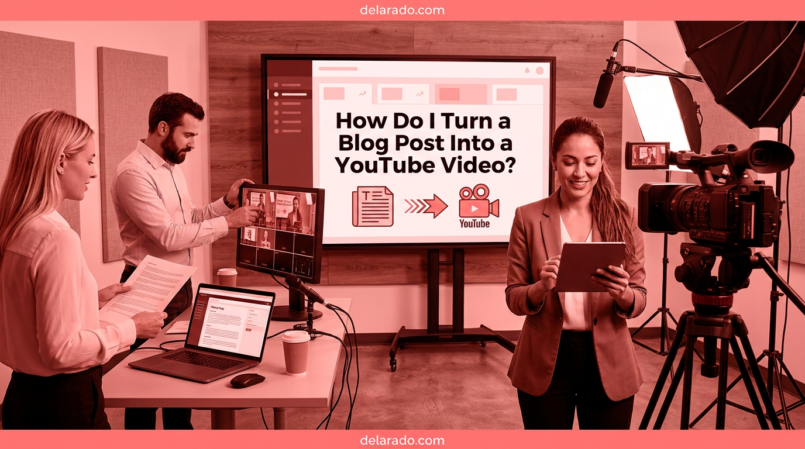
You can turn a blog post into a YouTube video by identifying the article’s main message, rewriting it as a spoken script, creating visuals that support each point, recording narration or presenting on camera, adding captions, editing for clarity, and directing viewers to the full article or a relevant next step.
Do not simply read the entire article word for word on video. Blog posts and videos work differently. A blog reader can scan headings, revisit sections, and read at their own pace. A video viewer needs a clear hook, visual explanation, simple structure, and a reason to keep watching.
One useful blog post can become a long-form YouTube tutorial, several YouTube Shorts, a video checklist, a webinar outline, clips for social media, an email newsletter, and a lead magnet. This makes blog-to-video repurposing a practical way to get more value from content you have already researched and written.
Who Is This Topic For?
This guide is for bloggers, affiliate marketers, small business owners, freelancers, consultants, local businesses, course creators, eCommerce sellers, YouTubers, educators, agencies, and anyone who wants to create video content from existing articles.
This Article Is Helpful If You Want To:
- Turn blog posts into YouTube videos
- Create tutorials without starting from scratch
- Build a YouTube channel for a business
- Create faceless or on-camera videos
- Repurpose articles into video scripts
- Drive video viewers back to your website
- Create YouTube Shorts from blog sections
- Improve captions, transcripts, and accessibility
- Promote lead magnets through video
- Build a repeatable blog-to-video workflow
Why Turn Blog Posts Into Videos?
Different people prefer different content formats. Some readers enjoy detailed articles, while others prefer watching a walkthrough, listening to an explanation, or seeing a visual demonstration.
Benefits of Turning Articles Into Videos
- Reach people who prefer video
- Create content for YouTube search
- Demonstrate processes visually
- Build trust through voice, screen recordings, or on-camera teaching
- Create YouTube Shorts from long-form content
- Repurpose existing research and outlines
- Drive viewers to articles, lead magnets, products, or services
- Use video in email and social media marketing
- Create an accessible alternative to written content
- Build a long-term library of tutorials
Simple Example
Blog post: “How Do I Find Low-Competition Keywords?”
YouTube video: “How to Find Low-Competition Keywords for a New Website: Step-by-Step Tutorial.”
Shorts: “Do not choose keywords only by volume,” “One free way to find keyword ideas,” and “Can you rank for zero-volume keywords?”
The blog post provides the research and structure. The video makes the process easier to see and follow.
Risks and Limitations
Not Every Blog Post Fits Video
Some short announcements, simple definitions, and highly detailed reference pages may not need a full video. Choose articles that benefit from explanation, demonstration, examples, stories, comparison, or walkthroughs.
Reading the Article Word for Word Can Feel Boring
Video viewers expect a more conversational format. Rewrite the content for speaking and use visuals to support the main points.
Outdated Blog Content Creates Outdated Videos
Check facts, pricing, product features, screenshots, software interfaces, policies, affiliate links, and recommendations before recording.
Copyright and Licensing Matter
Do not use music, stock video, images, clips, screenshots, fonts, or AI-generated media without understanding the relevant rights and licenses.
AI Visuals Can Mislead
Do not use AI-generated footage as fake evidence of customers, employees, products, real events, locations, or results. Clearly disclose realistic synthetic media where a viewer might mistake it for real.
Captions Need Review
Automatic captions can make mistakes, especially with names, technical terms, product names, accents, prices, links, and industry language. Review captions before publishing.
Views Do Not Guarantee Results
A video can receive views without generating subscribers, website traffic, leads, or sales. Use a clear call to action and track what viewers do next.
What Blog Posts Work Best as Videos?
Choose articles where video adds clarity, personality, a visual demonstration, or a step-by-step walkthrough.
Strong Blog-to-Video Topics
- How-to tutorials
- Step-by-step guides
- Product reviews
- Product comparisons
- Software walkthroughs
- Beginner guides
- Checklists
- Frequently asked questions
- Common mistakes
- Case studies
- Behind-the-scenes processes
- Tool demonstrations
- Problem-solving guides
- Myth-versus-fact articles
Example Blog Posts That Translate Well
- How to Start a WordPress Blog
- How to Use Google Search Console for SEO
- How to Create a Social Media Content Calendar
- How to Find Low-Competition Keywords
- How to Use Pinterest to Drive Website Traffic
- How to Create a Landing Page That Converts
- How to Secure a WordPress Website
- How to Create an Email Signup Form
Topics That May Need a Different Format
- Very short news updates
- Simple company announcements
- Highly technical reference documentation
- Large pricing tables that change frequently
- Content that depends on current legal or policy details
Even these topics may work as short update videos, but they often need careful revision and current information.
Step-by-Step Blog-to-Video Process
Step 1: Choose a Strong Source Article
Start with a blog post that is helpful, accurate, current, and connected to a business goal. Do not turn a weak or outdated article into a video without improving it first.
Choose an Article That:
- Answers a real audience question
- Has a clear main topic
- Includes steps, examples, or visuals
- Is current and accurate
- Has a useful call to action
- Connects to your business, product, service, or lead magnet
- Can be explained in a visual or conversational way
- Has potential for short clips and social posts
Example
Article: “How Do I Create a Social Media Content Calendar?”
Video: “How to Create a Social Media Content Calendar in 30 Minutes.”
The video can show a real spreadsheet, calendar, template, or Notion board while explaining the steps.
Step 2: Review and Update the Blog Post
Before scripting the video, verify that the article is worth promoting. Update anything that has changed since it was published.
Review:
- Facts and statistics
- Product features
- Software interfaces
- Pricing information
- Links and affiliate links
- Screenshots
- Policies and terms
- Examples
- Calls to action
- Affiliate and sponsorship disclosures
Ask:
- Would I still recommend this information today?
- Are the steps accurate?
- Can I show this process visually?
- Does the article have a clear next step?
- Are there important limitations I need to mention?
- Could a beginner follow this content?
It is better to update the source article before creating a video than to publish two outdated versions of the same information.
Step 3: Define the Video Goal
Every video should have one primary purpose. The goal determines the structure, length, visuals, call to action, and metric you will track.
Possible Video Goals
- Teach a beginner process
- Drive viewers to a blog post
- Promote a lead magnet
- Build authority in a topic
- Demonstrate a product
- Generate consultation requests
- Answer a common customer question
- Promote a product comparison
- Build an email list
- Create short-form content clips
Goal Example
Create a 10-minute YouTube tutorial that helps beginner bloggers understand how to choose WordPress hosting and encourages them to download a free Website Launch Checklist.
A clear goal prevents the video from becoming a rushed summary of every point in the article.
Step 4: Identify the Core Message
Find the one main idea the viewer should remember after watching.
Core Message Formula
This video helps [audience] solve [specific problem] so they can [desired outcome].
Example
This video helps beginner bloggers compare WordPress hosting options so they can choose a plan that matches their budget, support needs, and future website goals.
If the core message is unclear, the video will likely feel scattered.
Step 5: Turn the Article Into a Video Outline
A blog post has headings and paragraphs. A video needs a clear visual and spoken journey. Create a simpler outline before writing the script.
Basic YouTube Tutorial Structure
- Hook
- What the viewer will learn
- Why the topic matters
- Step-by-step explanation
- Examples or demonstration
- Common mistakes or limitations
- Summary
- Relevant call to action
Example Outline
Video title: How to Choose WordPress Hosting for Beginners
Hook: “Choosing hosting based only on the lowest price can create problems later. Here are five things beginners should compare first.”
Sections: Support, backups, security, speed, scalability, and pricing structure.
Close: “Download the free Website Launch Checklist from the link below for the complete setup process.”
Remove sections from the article that do not add value in video form. Add visual steps where video can explain the process better.
Step 6: Write a Conversational Script
Do not copy the article word for word. Rewrite it so it sounds natural when spoken aloud.
Written Blog Style
WordPress hosting is an important foundation for a website because it provides the server environment where website files, databases, and other resources are stored.
Conversational Video Style
Before your WordPress website can go live, it needs a place for its files and data to live. That is what hosting provides. Think of it as the space that keeps your website available online.
Script Writing Tips
- Use short sentences
- Use natural spoken language
- Explain terms before using them repeatedly
- Use one idea at a time
- Add verbal transitions
- Include examples
- Pause between major points
- Read the script aloud before recording
- Remove sentences that sound unnatural
- Keep the promise made in the title and hook
AI tools can help create a first script draft from a blog post, but you should edit the result for accuracy, tone, pacing, and original value. [1137]
Step 7: Create a Strong Hook
The opening moments of a video should make the topic and benefit clear. Avoid long introductions, unrelated personal stories, or logo animations before you explain why the viewer should stay.
Hook Formulas
- Before you [take action], check these [number] things.
- Most beginners make this mistake when they [task].
- Here is how to [outcome] without [common obstacle].
- If you are struggling with [problem], start here.
- I will show you how to [task] step by step.
- Do not choose [product or service] before understanding this.
- This is why your [result] may not be improving.
Weak Opening
Hello everyone, welcome back to my channel. Today we will talk about something very important, so make sure you stay until the end.
Stronger Opening
If you are starting a WordPress website, do not choose hosting based only on price. In this video, I will show you five features beginners should compare before buying a plan.
The stronger opening tells viewers who the video is for, what they will learn, and why it matters.
Step 8: Plan the Visuals
Video should show something useful, not only display a person talking for the entire length. Plan what viewers will see as each point is explained.
Useful Video Visuals
- Screen recordings
- Original screenshots
- Slides
- Checklists
- Simple diagrams
- Product demonstrations
- Comparison tables
- On-screen text
- Hands-only demonstrations
- Original photos
- Relevant licensed B-roll
- Whiteboard explanations
Visual Planning Example
| Spoken Point | Visual |
|---|---|
| “Hosting gives your website a place to live online.” | Simple diagram showing a website connected to a hosting server |
| “Check the backup options.” | Screenshot or checklist showing backup options |
| “Support matters for beginners.” | On-screen text: “Support: Can you get help when needed?” |
| “Choose a plan that can grow with your site.” | Simple comparison table of starter versus scalable options |
Only use visuals that are accurate, licensed, and relevant. Do not use AI-generated visuals as fake proof of real products, customers, events, or results.
Step 9: Choose a Video Style
You do not need to use the same style for every video. Choose a format that fits the topic, your resources, and your audience.
On-Camera Tutorial
Best for personal brands, teaching, coaching, storytelling, consulting, and trust-building. The presenter speaks directly to the viewer and may use screen recordings or graphics for support.
Screen Recording Tutorial
Best for software walkthroughs, WordPress tutorials, SEO tools, spreadsheets, design tools, and technical processes.
Faceless Voiceover Video
Best for slides, diagrams, stock footage, original visuals, product demonstrations, screen recordings, and text-based explanations.
Whiteboard Explainer
Best for simple concepts, processes, frameworks, and educational topics. Use clear visuals and avoid oversimplifying complex subjects.
Interview or Discussion Video
Best for expert perspectives, customer stories with permission, industry commentary, and complex topics that benefit from multiple viewpoints.
AI Avatar Video
Best for internal training, onboarding, standardized lessons, and multilingual explainers. Do not present an AI avatar as a real employee, customer, or expert.
Step 10: Record the Video or Voiceover
Choose the simplest method that lets you communicate clearly. High production quality is useful, but clear audio, understandable visuals, and helpful information matter more than expensive equipment.
Basic Recording Checklist
- Use a quiet location
- Check audio before recording the full video
- Use natural or simple lighting
- Keep the camera stable
- Record in the correct orientation
- Use a script or outline
- Speak at a steady pace
- Leave pauses between sections for editing
- Record extra takes of difficult sections
- Keep original files organized
Voiceover Checklist
- Use a quiet space
- Read the script aloud first
- Use a natural speaking pace
- Pronounce product names and technical terms clearly
- Check that audio matches visuals
- Remove distracting background noise
- Review generated AI voiceovers for unnatural wording or pronunciation
Do not clone or imitate a real person’s voice without clear permission.
Step 11: Edit for Clarity and Retention
Editing should make the video easier to understand. Remove long pauses, repeated points, off-topic sections, and anything that delays the main value.
Editing Checklist
- Does the video deliver what the title promises?
- Is the hook clear?
- Are the steps in a logical order?
- Are visuals relevant to the spoken words?
- Are key points shown on screen?
- Are there long pauses or repeated explanations?
- Is the audio clear?
- Are transitions understandable?
- Is the call to action relevant?
- Does the video work on a phone?
Keep the Viewer’s Time in Mind
Do not add unnecessary animation, lengthy intros, repeated branding, or unrelated B-roll just to make a video longer. Every section should support the viewer’s reason for clicking.
YouTube’s creator guidance describes click-through rate as how often viewers click after seeing a title and thumbnail, while audience retention shows where viewers continue watching or drop off. [1134]
Step 12: Add Captions and Transcripts
Captions make video more accessible and easier to understand in quiet, noisy, or sound-off viewing environments. Transcripts can help people read, search, quote, or revisit the information.
Captions Should:
- Match the spoken content accurately
- Appear at the correct time
- Use appropriate spelling and punctuation
- Include important non-speech sounds when relevant
- Remain visible long enough to read
- Stay clear of important visuals and interface elements
- Be reviewed for names, technical terms, and errors
Transcripts Should:
- Include spoken words accurately
- Identify meaningful sounds when appropriate
- Be available in an accessible format
- Be linked or placed near the original video where possible
- Be reviewed for spelling, names, links, and product terms
Section 508 guidance recommends synchronizing captions with audio, using accurate spelling and punctuation, including meaningful dialogue and sounds, and ensuring captions remain visible long enough for viewers to read. [1132]
Caption Workflow
- Generate automatic captions or upload a transcript
- Review the caption text carefully
- Correct names, product terms, and technical words
- Check timing and line breaks
- Publish captions
- Provide a transcript where appropriate
YouTube supports several caption workflows, including automatic captioning, uploading caption files, and using a transcript with automatic timing. Review generated captions before publishing. [1133]
Step 13: Create a Title and Thumbnail
Your title and thumbnail help viewers decide whether to click. They should accurately describe the video and make the main benefit easy to understand.
Strong Video Title Characteristics
- Clear topic
- Specific audience or use case
- Honest benefit
- Relevant search phrase when appropriate
- No misleading promise
- Matches the actual video
Weak Title
You NEED to See This!
Stronger Title
How to Choose WordPress Hosting for Beginners: 5 Things to Compare
Thumbnail Checklist
- Use one clear main visual
- Use large readable text
- Show the topic or outcome
- Use clear contrast
- Keep the design simple
- Use consistent brand elements
- Avoid misleading images or claims
- Check how it looks on mobile
YouTube identifies title and thumbnail click-through rate as a key metric and audience retention as a way to see where viewers keep watching or leave a video. [1134]
Step 14: Write the Description and Add Links
Your description can explain what the video covers, link to relevant resources, provide disclosures, and give viewers a next step.
Video Description Structure
- Short summary of the video
- Key topics covered
- Relevant website article
- Lead magnet or resource link
- Product or service link, if relevant
- Affiliate disclosure, if needed
- Related videos or playlists
- Contact or booking information, if relevant
Example Description
In this video, you will learn five things to compare before choosing WordPress hosting for a beginner website: support, backups, security, speed, and room to grow.
Get the free Website Launch Checklist: [link]
Read the complete WordPress hosting guide: [link]
Disclosure: Some links may be affiliate links. If you purchase through a qualifying link, I may earn a commission at no additional cost to you.
Make sure every link works and that the destination page matches the video topic.
Step 15: Add a Relevant Call to Action
Tell viewers what to do next. The call to action should fit the topic and the viewer’s stage of interest.
Awareness Calls to Action
- Subscribe for more beginner tutorials
- Watch the related guide
- Save this video for later
- Comment with your question
Traffic Calls to Action
- Read the full guide linked below
- Visit the resource hub
- See the complete comparison on our website
Lead Generation Calls to Action
- Download the free checklist
- Join the email list
- Register for the webinar
- Get the template
Sales Calls to Action
- Book a consultation
- Request a quote
- View product details
- Compare plans
- Start a free trial
Do not use a hard sales call to action in every video. A beginner tutorial may be better served by a helpful checklist or related article.
Step 16: Create Shorts From the Blog Post
One detailed article can provide multiple YouTube Shorts. Each Short should cover one useful lesson, not summarize the entire article.
Shorts Ideas From a Hosting Article
- Three WordPress hosting mistakes beginners make
- What does WordPress hosting actually do?
- Why backups matter for a new website
- Shared hosting versus managed WordPress hosting
- One question to ask before choosing a hosting plan
Short Video Structure
Hook: “Before you buy WordPress hosting, check this.”
Value: “Make sure the host provides a backup process you understand. A low monthly price is less useful if you do not know how to restore your site after a problem.”
Call to action: “Get the full Website Launch Checklist from the link below.”
Use Shorts to introduce a topic and direct interested viewers to longer videos, blog posts, playlists, or lead magnets.
Step 17: Publish and Promote
Publishing the video is only one part of the process. Share it through relevant channels where your audience already spends time.
Promotion Ideas
- Embed the video in the original blog post
- Share it with your email list
- Create a Reel or TikTok clip
- Create a Pinterest video Pin
- Share a useful takeaway on LinkedIn
- Post a short summary on Facebook
- Add the video to a YouTube playlist
- Link to related videos in end screens or descriptions
- Update related blog posts with a video link
- Use it in a welcome email sequence
Promote the value of the video, not only the fact that it exists. For example, say “Learn five things to compare before choosing WordPress hosting” rather than “New video uploaded.”
Step 18: Measure and Improve
Use YouTube Studio and website analytics to understand what helps viewers and supports your business goals.
Video Metrics to Review
- Impressions
- Click-through rate
- Views
- Average view duration
- Audience retention
- Watch time
- Likes
- Comments
- Shares
- Subscribers gained
- Traffic sources
Business Metrics to Review
- Website clicks
- Email signups
- Lead magnet downloads
- Contact form submissions
- Consultation bookings
- Product sales
- Affiliate link clicks
- Course enrollments
Questions to Ask
- Does the title and thumbnail match the video?
- Do viewers leave early because the hook is weak?
- Which sections keep people watching?
- Which questions appear in comments?
- Which videos drive website clicks?
- Which articles deserve more video versions?
- What should become a Short or social clip?
Update older videos when appropriate by improving titles, thumbnails, descriptions, related links, and pinned comments while keeping the content accurate. [1138]
Blog-to-Video Example
Source Blog Post
How Do I Create a Social Media Content Calendar?
Long-Form YouTube Video
How to Create a Social Media Content Calendar for Your Business
Video Sections
- Why posting without a plan creates stress
- Choose a clear business goal
- Define content pillars
- Add important campaign dates
- Choose realistic posting frequency
- Create calendar columns
- Batch content creation
- Schedule posts
- Review analytics each month
Visuals
- Screen recording of a Google Sheets calendar
- Example content pillar list
- Sample social media calendar
- On-screen checklist
- Example weekly workflow
Shorts From the Same Article
- “The easiest way to stop running out of social media ideas”
- “Three content pillars every small business can use”
- “One column your social media calendar needs”
- “Why you should batch video content”
- “The content calendar mistake that causes burnout”
Call to Action
Download the free Social Media Content Calendar Template from the link below.
Programs That Can Help
YouTube Studio
YouTube Studio can help upload and manage videos, add titles and descriptions, create subtitles, review analytics, manage comments, organize playlists, and track viewer behavior.
ChatGPT and Other AI Writing Tools
AI writing tools can help turn a blog post into a video outline, script draft, title options, Short ideas, captions, social clips, and email promotion copy. Review every output for accuracy and brand fit.
Canva
Canva can help create thumbnails, slides, on-screen graphics, diagrams, video assets, social media clips, checklists, and visual templates. Canva also offers script-to-video and AI video creation workflows through connected tools. [1135]
CapCut
CapCut can help edit video, add captions, trim clips, create vertical Shorts, add text overlays, add voiceovers, and create Reels and TikTok content from longer videos.
Descript
Descript can help edit videos through transcripts, create captions, remove filler words, make clips from longer recordings, and repurpose YouTube or webinar content.
Adobe Express
Adobe Express can help create graphics, edit video, resize assets, add captions, create thumbnails, and prepare video content for social platforms.
Pictory and Similar Blog-to-Video Tools
Blog-to-video tools can turn an article URL or pasted text into an editable video draft with script suggestions, visual options, captions, and voiceover choices. Review and customize every generated scene before publishing. [1136]
ElevenLabs and Other Voice Tools
AI voice tools can help create narration for faceless videos. Do not clone or imitate a real person’s voice without their permission, and disclose realistic synthetic narration when it could mislead viewers.
Google Analytics
Google Analytics can help track whether YouTube viewers visit your website, join an email list, download a lead magnet, book a consultation, or purchase a product.
Common Mistakes
Reading the Blog Post Word for Word
Rewrite articles in a conversational video style. Use short sentences, natural transitions, examples, and visuals.
Using a Weak Hook
Explain the problem and value early. Do not delay the main point with long introductions, logo animations, or unrelated stories.
Trying to Cover Too Much
Focus on one main question per video. Turn larger articles into a video series or create several Shorts from individual sections.
Using Irrelevant Visuals
Visuals should help the viewer understand the point. Avoid random stock footage, generic animations, or screenshots that do not match the narration.
Ignoring Captions
Captions improve accessibility and help viewers understand your video in sound-off settings. Always review automatic captions for errors.
Using Misleading Titles or Thumbnails
Titles and thumbnails should create interest without promising something the video does not deliver. A clickbait title may increase clicks but reduce trust and viewer retention.
Not Adding a Call to Action
Give viewers a relevant next step, such as a related guide, lead magnet, email list, product page, consultation page, or another video.
Not Linking Back to the Blog Post
Include the original article or a related resource in the description, pinned comment, end screen, or landing page so viewers can learn more.
Not Reviewing Copyright and Licenses
Check rights for music, stock media, AI visuals, templates, screenshots, logos, fonts, and video clips before publishing.
Not Reviewing Analytics
Use CTR, audience retention, watch time, comments, website clicks, and conversions to improve future videos.
Frequently Asked Questions
Can I turn any blog post into a YouTube video?
You can adapt many articles into videos, especially tutorials, reviews, comparisons, checklists, FAQs, demonstrations, and beginner guides. Choose posts where video adds explanation, visuals, or a walkthrough.
How long should a blog-to-video YouTube video be?
Use the length needed to help the viewer. A simple answer may work as a Short, while a detailed process may need a longer tutorial. Avoid adding filler only to make the video longer.
Do I need to show my face in a YouTube video?
No. You can create screen recordings, slides, voiceover videos, product demonstrations, whiteboard explainers, hands-only videos, tutorials, and original visual presentations without appearing on camera.
Can I use AI to turn a blog post into a video script?
Yes. AI can help create a first draft of a script, summarize sections, create hooks, and suggest Short ideas. Review the result for accuracy, conversational flow, originality, and brand voice before recording. [1137]
Should I include the full blog post in the video?
No. Choose the most useful points, explain them conversationally, add visuals, and link to the full article for readers who want more detail.
How do I make a blog post video more engaging?
Use a clear hook, short sections, relevant visuals, screen recordings, examples, captions, practical steps, and a call to action. Remove long introductions and repeated points.
Do YouTube videos need captions?
Captions help accessibility and make videos easier to follow in sound-off or noisy environments. Review automatic captions for accuracy, timing, names, and technical terms. [1132][1133]
Can I use stock footage in blog-to-video content?
Yes, if you have the right license and the footage accurately supports the point you are making. Do not use generic stock footage as false evidence of your customers, product results, team, office, or real events.
How do I get viewers from YouTube to my website?
Include relevant links in the description, mention the resource in the video, add a pinned comment where appropriate, use end screens and playlists, and offer a useful reason to click such as a checklist, full guide, template, product comparison, or consultation page.
How do I know if my blog-to-video strategy is working?
Track impressions, click-through rate, audience retention, watch time, subscribers, comments, website clicks, lead magnet downloads, email signups, bookings, and sales. Use the results to improve future scripts, titles, thumbnails, and calls to action. [1134]