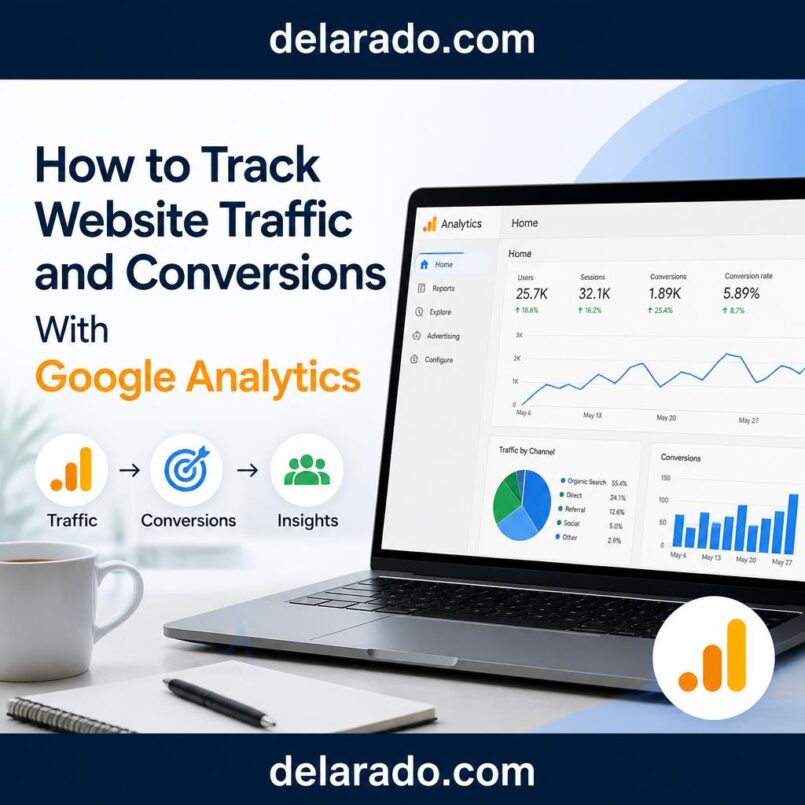
Google Analytics helps you understand how people find and use your website. It can show which traffic sources send visitors, which pages receive attention, how people engage with content, and whether visitors complete important actions such as subscribing to an email list, submitting a contact form, purchasing a product, or booking a consultation.
For an online business, traffic alone is not the goal. You need to know whether the right people are arriving and whether your website helps them take meaningful next steps. Google Analytics can help you make decisions based on data instead of guessing.
This guide explains how to set up Google Analytics 4, understand key reports, track conversions, connect Google Search Console, review traffic sources, and use data to improve your website responsibly.
What Is Google Analytics?
Google Analytics is a web analytics platform that collects data about visits and interactions on your website or app. The current version is commonly called Google Analytics 4, or GA4.
GA4 can help you understand:
- Where visitors come from.
- Which pages they view.
- How long they engage with your site.
- Which devices they use.
- Which campaigns drive visits.
- Which actions visitors take.
- Which traffic sources lead to conversions.
- Which pages need improvement.
Google Analytics is useful for bloggers, affiliate marketers, freelancers, local businesses, eCommerce stores, digital-product sellers, online course creators, and service providers.
Traffic Is Not the Same as Success
A website can receive many visitors but still fail to produce leads, customers, email subscribers, or revenue. The most useful analytics setup connects website activity to your actual business goals.
Examples of Meaningful Website Goals
- Grow an email list.
- Generate contact form inquiries.
- Book consultations.
- Sell digital products.
- Sell physical products.
- Increase affiliate-link clicks.
- Encourage visitors to read related articles.
- Get downloads of a lead magnet.
- Register people for a webinar.
- Generate calls for a local service business.
Example
A blog post about “How to Create an Email List” receives 1,000 visitors in a month. That sounds positive, but the real questions are:
- How many people joined the email list?
- How many downloaded the lead magnet?
- How many clicked a related product or service?
- Which traffic source brought the most engaged visitors?
- Did visitors read the article or leave quickly?
Website analytics helps you answer these questions.
Google Analytics vs. Google Search Console
Google Analytics and Google Search Console work well together, but they answer different questions.
| Google Analytics | Google Search Console |
|---|---|
| Shows what visitors do after arriving on your website. | Shows how your website appears and performs in Google Search. |
| Tracks sessions, pages, events, engagement, traffic sources, and conversions. | Tracks impressions, clicks, search queries, indexing, and technical search issues. |
| Useful for analyzing email, social media, referrals, paid campaigns, direct traffic, and on-site behavior. | Useful for analyzing organic Google Search visibility and search queries. |
| Answers: “What did visitors do after they arrived?” | Answers: “How did people find or see us in Google Search?” |
Google Search Console shows search visibility before a visitor clicks. Google Analytics shows visitor activity after they arrive.
Google Search Console defines impressions as how often someone saw a link to your site in Search and clicks as how often someone clicked a link from Search to your site. [345]
Set Up Google Analytics 4
To use GA4, you need a Google account and a website. You create an Analytics property, set up a web data stream, then add the measurement tag to your website.
Basic Setup Steps
- Create or sign in to your Google Analytics account.
- Create a new GA4 property for your business or website.
- Set your reporting time zone and currency carefully.
- Create a web data stream for your website.
- Copy the measurement ID, which often begins with “G-”.
- Add the Google tag to your website.
- Confirm that Google Analytics receives data.
- Set up important events and key events.
- Connect Search Console if appropriate.
- Review privacy and consent requirements for your audience.
Ways to Add GA4 to WordPress
- Use a reputable Google Analytics or site-kit plugin.
- Add the Google tag through your theme or website settings.
- Use Google Tag Manager.
- Use a WordPress theme or page builder with analytics integration.
- Ask a qualified web developer to add and test the tag.
Use one reliable setup method. Adding multiple tracking implementations can cause duplicate page views, confusing reports, and inaccurate data.
Verify That GA4 Is Working
After installing the Google tag, verify that GA4 is receiving activity from your website. You can visit your site yourself and check GA4’s real-time report or debugging tools.
Basic Verification Checklist
- Open your website in a browser.
- Visit a few pages.
- Open GA4 and check the real-time report.
- Confirm that at least one active user appears.
- Check that your page titles and URLs look correct.
- Test from a phone and desktop if possible.
- Check that no duplicate page views appear.
- Wait for standard reports to populate after setup.
Real-time data can help test the installation, while many standard reports may need additional time before they show complete information.
Understand Key GA4 Terms
Google Analytics uses terms that may feel technical at first. You do not need to memorize every metric. Start with the ones that connect to your business goals.
| Metric or Term | Simple Meaning |
|---|---|
| User | A person or device that interacts with your website or app. |
| Session | A group of interactions a user has with your website during a visit. |
| Event | An interaction tracked on your site, such as a page view, scroll, click, form submission, or purchase. |
| Key event | An event marked as especially valuable to your business, such as a purchase or lead submission. |
| Engaged session | A session that meets GA4’s engagement criteria, such as lasting long enough, including multiple page views, or triggering a key event. |
| Traffic source | Where a visitor came from, such as search, social media, email, referral, or paid advertising. |
| Landing page | The first page a visitor sees during a session. |
| Conversion rate | The percentage of visitors or sessions that complete a desired action. |
Google updates GA4 terminology and interface details over time. Focus on understanding what each metric means for your business rather than chasing every number in a dashboard.
Define Your Website Conversions
A conversion is a meaningful action you want a visitor to take. In GA4, important events can be marked as key events so you can see how often they occur and which traffic sources contribute.
Common Conversions for Different Businesses
| Business Type | Useful Key Events |
|---|---|
| Blog or affiliate website | Email signups, lead magnet downloads, affiliate link clicks, resource-page visits. |
| Freelance service business | Contact form submissions, consultation bookings, phone-number clicks, quote requests. |
| Digital product business | Product-page views, checkout starts, purchases, lead magnet downloads, email signups. |
| eCommerce store | Product views, add-to-cart actions, checkout starts, purchases, newsletter signups. |
| Local business | Call clicks, direction requests, booking requests, contact form submissions, quote requests. |
Start With Three to Five Key Events
Do not try to track every tiny interaction on day one. Start with the actions that matter most to the business.
For a beginner affiliate website, that could be:
- Email signup.
- Lead magnet download.
- Affiliate-link click.
- Contact form submission.
- Digital product purchase.
Once the basics work, you can add more detailed event tracking.
Track Email Signups
Email signups are one of the most useful conversions for a content site, affiliate website, or online business. A subscriber gives you permission to continue helping them through email.
Ways to Track Email Signups
- Track a form submission event.
- Track a visit to a dedicated thank-you page.
- Use your email platform’s direct GA4 integration if available.
- Use Google Tag Manager to trigger an event after successful form submission.
- Track clicks on a confirmed opt-in button where appropriate.
Thank-You Page Method
One simple method is to redirect successful subscribers to a unique thank-you page. For example:
yourwebsite.com/thank-you-website-checklist/
When someone reaches that page after submitting the form, you can track the page view or a related event as an email signup. This method works best when the thank-you page is only accessible after the form submission.
Test the process yourself. Submit the form, confirm the thank-you page appears, verify that the email arrives, and check that the event is visible in GA4.
Track Contact Form Submissions
For service businesses, a contact form submission may be one of the most important conversions. It may represent a potential client, quote request, consultation inquiry, or sales lead.
Ways to Track Contact Forms
- Use a thank-you page after successful submission.
- Use a form plugin that supports GA4 event tracking.
- Use Google Tag Manager to listen for a form submission event.
- Use a booking platform integration if visitors schedule calls.
Contact Form Example
For a local web-design business, you may track:
- Contact form submitted.
- Website audit request submitted.
- Consultation call booked.
- Phone number clicked on mobile.
- Pricing page viewed.
These metrics can help you identify which articles, pages, campaigns, and traffic sources generate real business interest.
Track Affiliate Link Clicks
Affiliate link clicks can help you understand whether product recommendations are relevant and visible. A click does not prove a sale, but it shows that someone was interested enough to learn more.
You should use affiliate tracking responsibly. Do not collect more personal information than necessary, do not hide tracking relationships, and make clear disclosures near affiliate recommendations.
The FTC says that endorsements must reflect the honest opinions of the endorser and cannot be used to make claims the marketer could not legally make. The FTC also says material connections that consumers would not expect and that could affect how they evaluate an endorsement should be disclosed clearly and conspicuously. [181]
Ways to Track Affiliate Link Clicks
- Use a link-management plugin with click reporting.
- Use tagged outbound links and GA4 event tracking.
- Use Google Tag Manager to track outbound link clicks.
- Review affiliate network dashboards.
- Use separate tracking links for different articles or campaigns where permitted.
What to Track
- Which article created the click.
- Which product link was clicked.
- Which traffic source sent the visitor.
- Which device type was used.
- Whether the page also generated email signups or other actions.
Never use tracking data as a reason to pressure visitors or hide affiliate relationships. Use it to improve content quality, relevance, and user experience.
Track Digital Product Purchases
If you sell digital products, purchase tracking can show which products sell, where customers came from, and which campaigns or articles contributed to revenue.
Examples of Digital Product Events
- Product page viewed.
- Checkout started.
- Payment completed.
- Purchase completed.
- Order confirmation page viewed.
- Product download clicked.
- Refund requested.
Possible Setup Methods
- Use an eCommerce plugin with GA4 integration.
- Use checkout software that supports analytics integrations.
- Use Google Tag Manager.
- Track unique order confirmation pages.
- Use payment or storefront platform reporting alongside GA4.
Keep your analytics setup accurate. If a purchase event fires multiple times, your reports may overstate revenue or conversions. Test every step before relying on the data.
Understand Traffic Sources
Traffic source reports show where visitors came from. This helps you identify which marketing channels send the most relevant people to your site.
Google describes the GA4 Traffic Acquisition report as a pre-made report designed to help you understand where website and app visitors come from. [523]
Common Traffic Channels
| Traffic Channel | What It Usually Means |
|---|---|
| Organic Search | Visitors arrived from unpaid search results. |
| Direct | Visitors typed the URL, used a bookmark, or came from a source that could not be identified precisely. |
| Referral | Visitors clicked a link on another website. |
| Organic Social | Visitors arrived through unpaid social-media content. |
| Visitors clicked a link in an email campaign. | |
| Paid Search | Visitors clicked a paid search advertisement. |
| Paid Social | Visitors clicked paid social-media advertisements. |
| Organic Video | Visitors arrived from unpaid video-platform links when classified correctly. |
Traffic channels can be affected by privacy settings, browser behavior, tracking setup, and missing campaign tags. Treat reports as useful indicators, not perfect records of every visitor’s journey.
Use UTM Parameters for Campaign Tracking
UTM parameters are small tags added to a URL. They help Analytics identify where a campaign link came from, such as a newsletter, Pinterest Pin, YouTube description, social-media post, paid ad, or partner campaign.
Example UTM Link
https://yourwebsite.com/website-launch-checklist/?utm_source=pinterest&utm_medium=organic_social&utm_campaign=website_launch_checklist
Common UTM Parameters
- utm_source: The platform or source, such as newsletter, pinterest, youtube, or partnername.
- utm_medium: The marketing medium, such as email, social, referral, cpc, or affiliate.
- utm_campaign: The campaign name, such as spring_launch or seo_checklist.
- utm_content: Optional identifier for different link versions, placements, or creative variations.
- utm_term: Often used for paid search keywords.
Use UTMs Carefully
- Use a consistent naming system.
- Use lowercase names to avoid duplicate-looking reports.
- Do not use UTM tags on internal links within your own website.
- Keep campaign names readable.
- Track only what you will actually review.
- Use a spreadsheet to document campaign naming conventions.
For example, if you create three Pinterest Pins for one lead magnet, UTM tags can help you compare which Pin design sends the most visitors and signups.
Use the Traffic Acquisition Report
The Traffic Acquisition report shows where sessions come from. This can help answer questions such as:
- Does SEO bring engaged visitors?
- Which social platform sends the most traffic?
- Do email campaigns create product page visits?
- Which referral partners send qualified leads?
- Do paid ads lead to meaningful conversions?
How to Review a Channel
- Open the Traffic Acquisition report.
- Choose a useful date range.
- Review sessions, users, engagement, and key events by channel.
- Compare conversion activity, not just traffic volume.
- Click into a channel to view sources or campaigns.
- Identify pages and offers that perform well for that audience.
- Improve weak campaigns or stop spending on traffic that does not fit.
For example, Pinterest may send fewer visitors than Google Search but generate more email signups. In that case, Pinterest traffic may be especially valuable for growing your list.
Review Landing Pages
Landing page data shows which pages visitors see first. This can help you understand whether your top entry pages match the needs of your audience.
Questions to Ask About Landing Pages
- Does this page attract the right audience?
- Does it answer the searcher’s or visitor’s question quickly?
- Does it have a clear next step?
- Does it include relevant internal links?
- Does it have an appropriate lead magnet or offer?
- Is it easy to read on mobile?
- Does it load quickly enough?
- Are important product details accurate?
Example
If your article “How to Start Affiliate Marketing” receives many visitors but few email signups, consider adding a more relevant content upgrade, such as an Affiliate Niche Research Worksheet or a Beginner Affiliate Website Checklist.
Do not assume low conversion means the article is bad. The issue may be the offer, call to action, traffic source, page experience, or audience fit.
Measure Content Performance
Content performance is more than page views. Look at whether articles attract the right people and help them take useful next steps.
Useful Content Metrics
- Users and sessions.
- Engaged sessions.
- Average engagement time.
- Scroll events, if tracked.
- Email signups from each article.
- Affiliate-link clicks.
- Product page clicks.
- Contact form submissions.
- Internal-link clicks.
- Search impressions and clicks from Search Console.
Content Improvement Example
Suppose an article about web hosting gets search traffic but no affiliate clicks. You might improve it by:
- Adding a clearer hosting comparison table.
- Explaining who each host is best for.
- Adding pros, cons, and alternatives.
- Making affiliate disclosures clear.
- Adding helpful screenshots or setup examples.
- Improving the call to action.
- Checking whether the article matches the searcher’s intent.
Google’s people-first guidance emphasizes creating content for an intended audience and demonstrating firsthand expertise or depth of knowledge, including actual use of a product or service where relevant. [237]
Connect Google Search Console to GA4
Connecting Search Console and GA4 can help you view some Search Console data alongside your Analytics reports. It does not replace using Search Console directly, but it can make it easier to connect search visibility with on-site behavior.
Why Connect Them?
- Compare search traffic with other traffic sources.
- See which landing pages attract organic visitors.
- Identify content that gains search visibility.
- Understand whether organic visitors sign up, contact you, or purchase.
- Find content opportunities based on queries and engagement.
Before You Connect
- Verify ownership of the site in Search Console.
- Have edit access to the GA4 property.
- Make sure the correct website URLs are used.
- Review Google’s current connection instructions.
Use both platforms together: Search Console for Google Search visibility and query information; GA4 for website behavior, traffic source comparison, and conversion analysis.
Build a Simple Analytics Dashboard
You do not need to look at dozens of reports every day. Build a simple monthly dashboard around your business goals.
Example Dashboard for a Content Website
- Organic search users.
- Total website users.
- Top five landing pages.
- Email subscribers.
- Lead magnet conversion rate.
- Affiliate-link clicks.
- Digital product sales.
- Top traffic sources.
- Top performing article by conversions.
- Revenue and expenses.
Example Dashboard for a Service Business
- Total website visitors.
- Organic search traffic.
- Contact form submissions.
- Consultation bookings.
- Phone number clicks.
- Quote requests.
- Top service pages.
- Top traffic sources.
- Lead-to-client conversion rate.
- Monthly revenue and cost per lead.
Review the dashboard monthly. Weekly reviews can help when you are actively running campaigns, but avoid making major decisions based on a few days of data.
Use Data to Improve Your Marketing
Analytics is useful only if you take action based on what you learn. Use data to improve content, offers, landing pages, email campaigns, and traffic sources.
If Traffic Is Low
- Publish more helpful content around audience questions.
- Improve SEO fundamentals.
- Promote content through one relevant channel.
- Create better titles and meta descriptions.
- Build internal links between related articles.
- Look for topics with search impressions in Search Console.
If Traffic Is High but Conversions Are Low
- Check whether traffic matches your target audience.
- Improve the call to action.
- Create a more relevant lead magnet.
- Clarify what the product or service offers.
- Improve page speed and mobile usability.
- Add helpful proof, examples, or FAQs.
- Reduce unnecessary form fields.
- Make prices and policies easier to understand.
If Email Signups Are Strong but Sales Are Low
- Review whether your lead magnet attracts the right audience.
- Improve your welcome email sequence.
- Make the product offer more relevant.
- Answer product objections more clearly.
- Review pricing and perceived value.
- Ask subscribers what they need help with.
- Make sure the sales page delivers on the promise of the lead magnet.
Use data to ask better questions, not to assume you have all the answers.
Privacy, Consent, and Data Collection
Website analytics can involve cookies, device identifiers, IP-related information, and behavioral data. Privacy laws and consent requirements vary by location, audience, and analytics configuration.
Basic Privacy Practices
- Publish a clear Privacy Policy.
- Explain that you use analytics tools where required.
- Use consent tools when required by applicable law.
- Collect only the data you need.
- Avoid sending personally identifiable information to Analytics.
- Review your Google Analytics data settings.
- Limit access to analytics accounts.
- Use strong passwords and two-factor authentication.
- Review retention settings and data-sharing options.
- Consult a privacy professional for your specific obligations.
Do not use Analytics to identify or expose individual visitors. Use it to understand broad patterns and improve the website experience.
Common Google Analytics Mistakes
- Tracking traffic but not conversions.
- Installing multiple GA4 tags accidentally.
- Failing to test events after setup.
- Tracking every minor click instead of meaningful actions.
- Using unclear campaign names.
- Using UTM tags on internal website links.
- Ignoring privacy and consent requirements.
- Sending personally identifiable information to Analytics.
- Making decisions based on very small data samples.
- Focusing on vanity metrics instead of business results.
- Not connecting Analytics with Search Console.
- Never reviewing the reports after installing the tool.
30-Day Analytics Setup Plan
Week 1: Install and Verify
- Create a GA4 property.
- Install the Google tag on your website.
- Confirm that real-time data appears.
- Set the correct time zone and currency.
- Review basic privacy and consent requirements.
Week 2: Define Key Events
- Choose three to five important website actions.
- Set up email signup tracking.
- Track contact form submissions or consultation bookings.
- Track product purchases or checkout starts if relevant.
- Test each event yourself.
Week 3: Organize Traffic Tracking
- Review the Traffic Acquisition report.
- Create a simple UTM naming system.
- Tag future email, Pinterest, social, and campaign links.
- Connect Google Search Console if appropriate.
- Identify your top landing pages.
Week 4: Review and Improve
- Build a simple monthly dashboard.
- Review traffic sources and conversion paths.
- Identify one weak landing page to improve.
- Identify one strong source or article to expand.
- Create a regular monthly analytics review process.
Final Thoughts
Google Analytics can help you understand whether your online marketing actually supports your business goals. Start with basic traffic data, then track the actions that matter most: email signups, lead magnet downloads, contact forms, consultation bookings, purchases, and relevant affiliate-link clicks.
Use GA4 alongside Google Search Console. Search Console shows how your content appears in Google Search, while Analytics shows what people do after they arrive. Together, they can help you improve your content, traffic strategy, offers, and user experience.
Do not get lost in dashboards. Focus on a small number of meaningful metrics, respect visitor privacy, and use the information to build a more helpful website for your audience.
Frequently Asked Questions
Is Google Analytics free?
Google Analytics 4 is available as a free analytics platform for many website owners. Google also offers enterprise-level analytics products for organizations with more advanced needs.
Do I need Google Analytics and Search Console?
They serve different purposes and work well together. Google Search Console helps you understand Google Search visibility, impressions, clicks, queries, and indexing. Google Analytics helps you understand traffic sources, visitor behavior, events, and conversions on your website.
What should I track as a beginner?
Start with total traffic, traffic sources, top landing pages, email signups, contact form submissions, lead magnet downloads, product purchases, and any other action that directly supports your business goals.
What is a key event in GA4?
A key event is an important user action that you mark in GA4 because it represents value to your business, such as a purchase, lead submission, consultation booking, or email signup.
How do I track affiliate link clicks?
You can use a link-management plugin, Google Tag Manager, GA4 outbound-click events, affiliate network dashboards, or tagged links. Use clear disclosures near affiliate links and track data responsibly.
Why does Google Analytics show different numbers than Search Console?
The platforms measure different things. Search Console reports Google Search visibility and clicks from Google results, while Analytics measures on-site sessions and events. Differences can also result from time zones, privacy settings, tracking setup, attribution, and data processing.
Do I need a cookie consent banner for Google Analytics?
It depends on where your visitors are located, applicable privacy laws, and how your analytics is configured. Review your legal obligations and seek qualified privacy advice when needed.