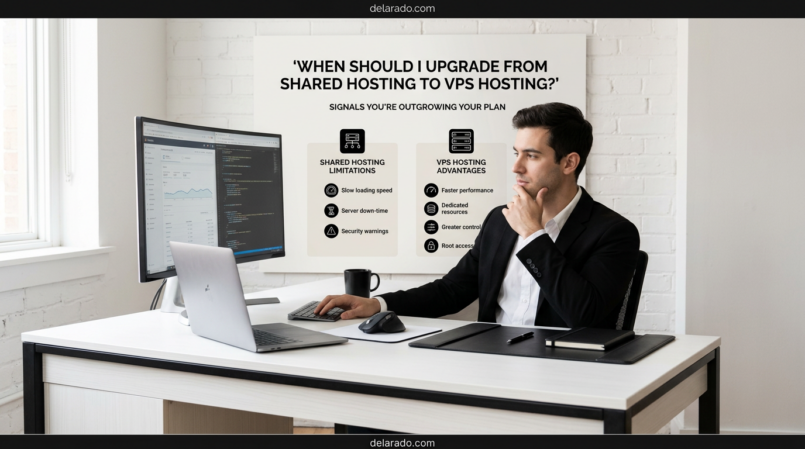
You should consider upgrading from shared hosting to VPS hosting when your website has real resource, performance, traffic, customization, or reliability needs that shared hosting can no longer support effectively. The key word is real: do not upgrade simply because VPS sounds more professional or because a hosting company suggests a larger plan.
For many new WordPress blogs, affiliate sites, portfolios, local business websites, and early digital-product sites, shared hosting is enough. A VPS becomes more reasonable when you consistently hit resource limits, experience performance problems after optimizing your site, run an active eCommerce or membership business, need custom server configuration, or have traffic that exceeds what your shared plan can handle.
Before upgrading, diagnose the actual problem. A slow WordPress website may be caused by huge images, too many plugins, an inefficient theme, excessive scripts, poor caching, or a poorly designed page—not necessarily by the hosting plan.
Who Is This For?
This guide is for WordPress website owners, bloggers, affiliate marketers, eCommerce sellers, local businesses, freelancers, course creators, membership site owners, and online entrepreneurs currently using shared hosting.
You May Need This Guide If:
- Your website is slowing down regularly
- Your host sends resource-limit warnings
- Your traffic is growing
- You run an online store
- You operate a membership or course website
- Visitors log in and use database-heavy features
- You use complex WordPress plugins or custom tools
- You need more control over server configuration
- You are considering a VPS upgrade but are unsure whether it is necessary
What Is Shared Hosting?
Shared hosting places multiple customer websites on one physical server. The websites share underlying hardware resources such as CPU, RAM, storage, and network capacity.
Because providers divide infrastructure across many customers, shared hosting is often more affordable and easier for beginners. The host typically manages most server-level maintenance, infrastructure updates, and basic operational tasks.
Shared Hosting Is Often Good For:
- New WordPress blogs
- Freelance portfolios
- Affiliate websites with low or moderate traffic
- Local service business websites
- Simple landing pages
- Early content websites
- Small digital-product businesses
- Personal brands
Benefits of Shared Hosting
- Usually lower cost
- Often easy for beginners
- Commonly includes WordPress installation tools
- Provider manages much of the infrastructure
- May include SSL certificates, support, and email tools
- Usually enough for a new website that is well optimized
Limitations of Shared Hosting
- Resources are shared with other websites
- There may be CPU, RAM, process, storage, database, or file-count limits
- Advanced server customization is usually limited
- High traffic or complex sites may outgrow the plan
- Resource-heavy plugins and tasks may cause issues
Shared hosting is not a poor choice by default. It is often the right place to start. The goal is to recognize when your website’s actual needs have changed.
What Is VPS Hosting?
VPS stands for Virtual Private Server. A VPS divides one physical server into multiple virtual environments. Each customer has an allocated portion of server resources and more control over their environment than they would have on shared hosting.
AWS explains that VPS hosting sits between shared and dedicated hosting. The physical server is compartmentalized so each customer has exclusive access to their allocated share of resources, even though the underlying physical server is still shared. [594]
VPS Hosting May Provide:
- More allocated CPU and RAM resources
- Greater isolation from other websites
- More server configuration control
- Ability to install custom software in some setups
- More predictable performance under normal conditions
- Flexibility to scale resources as your website grows
- Potentially stronger support for demanding WordPress sites
VPS Hosting May Also Require:
- A larger budget
- More technical knowledge
- Server security management
- Software update management
- Configuration knowledge
- Monitoring and troubleshooting
- Managed support if you do not want to administer a server yourself
Some hosts offer managed VPS plans, where the provider handles more technical work. Other plans are unmanaged, meaning you have more responsibility for setup, security, updates, and maintenance.
Benefits of Upgrading to VPS Hosting
More Allocated Resources
A VPS may provide more CPU, RAM, storage, and processing capacity than shared hosting. This can help websites that have grown beyond the limits of a shared environment.
More Reliable Performance
Because your VPS has allocated virtual resources, heavy activity on unrelated customer websites may have less effect on your environment than on a typical shared hosting plan.
Greater Control
VPS hosting can allow more server-level customization. Depending on the plan, you may be able to install software, adjust settings, configure caching, manage security tools, and optimize your environment for a specific application.
Better Support for Complex Websites
VPS hosting can be helpful for active WooCommerce stores, membership websites, course platforms, custom applications, larger databases, websites with many logged-in users, or sites using resource-heavy plugins.
Scalability
Many VPS plans allow you to add resources as your website grows. This can be more flexible than moving directly from a small shared plan to a dedicated server.
Risks and Limitations of VPS Hosting
Higher Cost
VPS hosting usually costs more than shared hosting. You should be able to justify the cost through real website needs, business revenue, traffic, user activity, or technical requirements.
More Technical Responsibility
Unmanaged VPS hosting may require you to manage operating system updates, security patches, firewalls, server software, backups, monitoring, and troubleshooting. If you lack the needed skills, a managed plan or professional support may be more appropriate.
More Power Does Not Fix Bad Optimization
A VPS may not solve problems caused by oversized images, excessive WordPress plugins, bloated themes, broken scripts, auto-playing videos, inefficient code, or poor database management.
Migration Risks
Moving from shared hosting to VPS can involve website files, databases, DNS records, SSL certificates, email accounts, caching settings, cron jobs, and integrations. Always create a backup and test thoroughly after migration.
Potential for Misconfiguration
More control also means more chances to configure something incorrectly. Poor security, outdated software, weak access control, or incorrect caching settings can create problems.
Signs You May Need to Upgrade to VPS Hosting
You should not upgrade based on a single slow day or a generic sales email. Look for repeated, measurable signs that shared hosting is no longer appropriate.
1. Your Host Repeatedly Reports Resource Limits
Shared hosting plans often have usage limits related to CPU, RAM, simultaneous processes, database activity, input/output usage, or file counts. If your host repeatedly reports that you are hitting resource limits, it may be a sign that your website needs more capacity.
Examples of Possible Warnings
- CPU usage limit reached
- Memory limit reached
- Too many concurrent processes
- Database usage limits
- File or inode limit reached
- Bandwidth or traffic overage
- Hosting account suspension due to resource use
Before upgrading, ask the host what specifically caused the limit. You may be able to fix a plugin, image issue, spam bot problem, inefficient query, or malicious activity instead.
2. Your Website Is Slow After Optimization
Slow pages are a possible sign that you need more resources, but hosting should not be the first assumption. Optimize the website first.
Check These Issues Before Upgrading
- Large uncompressed images
- Too many installed plugins
- Heavy page-builder layouts
- Unnecessary tracking scripts
- Too many pop-ups
- Autoplay videos or large video backgrounds
- Outdated WordPress, themes, or plugins
- Missing caching configuration
- Slow external tools or embedded widgets
- Database clutter or spam comments
- Malware or suspicious traffic
If the website remains slow after reasonable optimization and your host confirms resource limitations, a VPS may be appropriate.
Google defines Core Web Vitals as metrics that measure real-world user experience for loading performance, interactivity, and visual stability. You can review the Core Web Vitals report in Google Search Console to understand how groups of your pages perform. [601]
3. Traffic Has Grown Consistently
Steady traffic growth can increase server demand. This is especially true when visitors browse many pages, use search features, submit forms, watch embedded media, download files, or interact with dynamic website features.
Traffic-Related Signs
- Visitors experience slow loading during normal traffic periods
- Traffic spikes make the site temporarily unavailable
- Hosting reports show sustained resource usage
- Google Analytics shows growing sessions while site performance declines
- New content, viral posts, or campaigns create repeated slowdowns
Traffic volume alone does not determine whether you need a VPS. A simple content site may handle more traffic than a complex membership site because content pages often require fewer server resources than logged-in, dynamic user activity.
4. You Run an Active eCommerce Store
eCommerce websites can require more resources because each visitor may browse product pages, search inventory, add products to a cart, create an account, apply discounts, start checkout, make a payment, and receive order-related updates.
eCommerce Signs You May Need a VPS
- Checkout pages become slow
- Cart sessions fail or expire unexpectedly
- Inventory updates are delayed
- Traffic spikes affect store performance
- Many customers are active at the same time
- You use several eCommerce extensions and integrations
- Hosting resource limits affect orders or customer experience
Before upgrading, optimize images, simplify plugins, review database performance, test payment tools, and ensure caching does not interfere with cart or checkout functions.
5. You Run a Membership, Course, or Community Website
Membership websites, course platforms, online communities, and client portals can be more demanding than a standard blog because visitors may log in, access protected pages, watch lessons, download files, post comments, complete quizzes, or interact with a database.
Possible VPS Signs for Membership Sites
- Many users log in at the same time
- Course pages load slowly
- Member dashboards are delayed
- Database queries are slow
- Video or file delivery creates performance issues
- User activity exceeds shared hosting limits
A VPS may help, but it is also important to use specialized video hosting when appropriate rather than storing large video files directly on your web server.
6. You Need Custom Server Configuration
Some websites need custom software, server settings, advanced caching, custom security rules, specific PHP modules, development environments, background processes, or other configuration options that shared hosting may not allow.
AWS notes that VPS hosting provides more control over the server environment than shared hosting and can allow users to install custom software and configurations. [594]
Examples of Custom Needs
- Custom application software
- Advanced server caching configuration
- Custom firewall rules
- Specialized database requirements
- Custom development or testing environments
- Background tasks or scheduled processes
- Server monitoring tools
- Advanced security configurations
If you do not understand these requirements, do not choose VPS simply because it offers more control. More control can create more maintenance responsibilities.
7. Your Website Generates Enough Revenue to Support the Upgrade
Hosting should be treated as a business expense. Upgrade when the cost is justified by the website’s importance, revenue, customer activity, or risk of downtime.
Questions to Ask
- Is the website generating enough revenue to cover the added cost?
- Could slowdowns be causing missed sales or leads?
- Would better reliability improve customer trust?
- Do I need more resources for planned growth?
- Would managed VPS support save enough time to justify the cost?
- Have I optimized the current site first?
Do not use high-interest debt or money needed for essential expenses to upgrade an unproven website. Start with reasonable infrastructure and scale based on evidence.
When You Should Not Upgrade Yet
Not every website problem requires a VPS. In some cases, upgrading will add cost and complexity without solving the actual issue.
Your Website Is New and Has Little Traffic
If your site is new, has low traffic, and is mostly static pages or blog posts, shared hosting is usually enough. Focus on content, SEO, audience building, and a clear offer first.
You Have Not Optimized Images
Large image files can slow down pages significantly. Compress and resize images before upgrading infrastructure.
You Have Too Many Plugins
Too many plugins, especially overlapping or poorly maintained plugins, can slow down WordPress and cause conflicts. Remove unnecessary tools before assuming you need a more powerful server.
You Use a Heavy Theme or Page Builder
A visually complicated theme with excessive animations, sliders, widgets, and scripts can create performance problems. Simplifying the design may provide more benefit than upgrading hosting.
You Have Not Enabled Caching
Appropriate caching can improve performance for many WordPress sites. Review your host’s caching tools or use a reputable caching solution that fits your website setup.
You Have Not Checked for Malware or Spam
Malware, bot traffic, spam submissions, and suspicious scripts can consume resources. Run security checks and review hosting logs or support reports before upgrading.
Step-by-Step: Decide Whether to Upgrade
Step 1: Measure Current Performance
Do not rely only on how the site feels from your own computer. Use data and monitoring tools to identify patterns.
Useful Tools
- Google Search Console
- Google Analytics
- Google PageSpeed Insights
- Host resource usage reports
- Website uptime monitoring tools
- WordPress performance plugins
- Server logs or support reports
Measure:
- Page load performance
- Server response issues
- Traffic changes
- Resource usage
- Error messages
- Downtime incidents
- Checkout performance
- Form submission performance
- Logged-in user experience
Step 2: Optimize the Website First
Fix avoidable problems before paying for more server resources.
Optimization Checklist
- Compress and resize images
- Use a lightweight theme
- Remove unused plugins
- Update WordPress, themes, and plugins
- Enable appropriate caching
- Reduce excessive scripts and widgets
- Use a content delivery network if appropriate
- Optimize the database
- Remove spam comments and unused drafts
- Check for malware and bot traffic
- Test website pages on mobile devices
After making improvements, monitor the website again. If performance and resource problems continue, you have stronger evidence that an upgrade may be needed.
Step 3: Ask Your Host for Specific Data
Contact your hosting provider and ask what resource or technical issue is affecting your site. Avoid accepting a generic upsell recommendation without understanding the actual cause.
Questions to Ask Your Host
- Which resource limits am I reaching?
- How often do the limits occur?
- What pages, scripts, plugins, or processes are causing the issue?
- Can the problem be fixed through optimization?
- Would a managed WordPress plan solve it?
- Would VPS hosting solve it?
- What VPS resources would I actually need?
- Is the VPS managed or unmanaged?
- What migration support is available?
A good hosting decision should be based on data, not fear.
Step 4: Compare Managed and Unmanaged VPS Options
Before upgrading, decide how much server management you are capable of handling.
| Managed VPS | Unmanaged VPS |
|---|---|
| Provider handles more of the server maintenance and support. | You handle more server setup, security, updates, and troubleshooting. |
| Often easier for business owners without server administration skills. | Often better for developers or technical teams. |
| Usually costs more. | May cost less but requires more time and expertise. |
| May include support for backups, security, updates, or configuration. | You must confirm exactly what is included and take responsibility for the rest. |
If your business depends on the website and you do not have server administration skills, a managed option may be safer than trying to maintain an unmanaged VPS without adequate knowledge.
Step 5: Plan the Migration
Moving from shared hosting to VPS hosting should be planned carefully to reduce downtime and avoid losing data.
Migration Checklist
- Create a full website backup
- Back up files and database separately if possible
- Record domain and DNS settings
- Record email account settings
- Review SSL certificate configuration
- Check payment, checkout, and form integrations
- Check cron jobs and scheduled tasks
- Test the website in the new environment before DNS changes
- Test desktop and mobile pages after migration
- Test email forms, checkout, logins, and downloads
- Monitor uptime and errors after launch
Do not delete the old hosting account immediately. Keep it active until you confirm that the new site, email, forms, and integrations work correctly.
Programs and Tools That Can Help
DreamHost
DreamHost offers multiple hosting options, including shared hosting, managed WordPress services, VPS hosting, and dedicated hosting. Compare the current plan specifications, pricing, support, backup features, security tools, migration options, and renewal terms before selecting a plan.
SiteGround
SiteGround provides WordPress-compatible hosting with plan-dependent options such as backups, caching, staging, security, and performance tools. Review its current plans to determine whether optimizing or upgrading within its hosting environment fits your needs.
Google Search Console
Google Search Console can help you monitor indexing, search impressions, clicks, sitemap status, mobile issues, and Core Web Vitals reports.
Google Analytics
Google Analytics can help you measure traffic, traffic sources, visitor behavior, product activity, email signups, contact form conversions, and other important website events.
Google PageSpeed Insights
Google PageSpeed Insights can help identify opportunities to improve page performance. Use it as a diagnostic tool rather than treating any single score as the entire measure of website quality.
SE Ranking
SE Ranking can help with keyword research, site audits, rank tracking, competitor analysis, backlink monitoring, local SEO, and reporting. Its site audit tools can help identify technical issues that may affect a website before or after a hosting upgrade.
Common Mistakes
Upgrading Before Optimizing
Do not spend more on hosting before checking images, plugins, themes, caching, scripts, spam, malware, and database issues. A poorly optimized site can remain slow on a VPS.
Choosing Unmanaged VPS Without Technical Skills
Unmanaged VPS hosting can be powerful, but it requires server knowledge. If you are not comfortable managing security patches, server updates, backups, configuration, and troubleshooting, use managed hosting or professional support.
Assuming Traffic Alone Requires a VPS
A simple optimized content website may handle more traffic than a dynamic membership or eCommerce site. Focus on resource use, server limits, logged-in activity, and performance—not only visitor count.
Ignoring Renewal Costs
Compare introductory prices, renewal rates, managed support costs, backup tools, migration assistance, email services, security add-ons, and upgrade fees before committing.
Skipping Backups Before Migration
Always create a full backup before moving servers. Confirm that you know how to restore the backup if something goes wrong.
Forgetting to Test After Migration
After upgrading, test important pages, forms, checkout flows, email delivery, logins, SSL, affiliate links, analytics, and mobile design. A migration is not complete until the full customer experience works.
Frequently Asked Questions
When should I move from shared hosting to VPS?
Consider moving when you repeatedly hit resource limits, experience persistent performance problems after optimization, have growing traffic, run active eCommerce or membership features, need custom server configuration, or can justify the additional cost through business needs.
Will VPS hosting make my website faster?
VPS hosting may improve performance if your shared hosting plan lacks enough resources. It will not automatically fix issues caused by large images, too many plugins, a heavy theme, excessive scripts, poor caching, malware, or inefficient website design.
How much traffic requires VPS hosting?
There is no universal traffic number. A simple static content site may handle more traffic on shared hosting than a dynamic store, membership website, or course platform. Resource usage and real performance data matter more than visitor count alone.
Is VPS hosting good for WordPress?
Yes. VPS hosting can be useful for growing WordPress websites, active WooCommerce stores, membership platforms, course websites, and sites that need more resources or server customization. It may be unnecessary for a new or low-traffic blog.
Should I choose managed or unmanaged VPS hosting?
Choose managed VPS hosting if you need more resources but do not want to manage server security, updates, backups, and configuration yourself. Unmanaged VPS is more suitable for people with server administration skills or access to technical support.
Can VPS hosting improve SEO?
VPS hosting may support better performance and reliability when shared hosting becomes a bottleneck. It does not guarantee SEO results. Rankings depend on helpful content, search intent, site structure, technical quality, competition, and user experience.
Can I upgrade to VPS without downtime?
Some providers can minimize downtime through migration tools, staging, or managed transfer processes. Exact results vary by provider and website complexity. Plan carefully, create backups, test the site, and schedule migration during a lower-traffic period when possible.