“`html
ImagineArt can help you create original AI images by turning detailed text prompts, reference images, and design instructions into visual drafts. You can use it to develop social-media graphics, blog illustrations, concept art, mood boards, backgrounds, thumbnails, product-style concepts, educational visuals, and design ideas.
“Original” does not simply mean an image was generated from a prompt. A responsible original-image workflow includes your own creative direction, specific prompt writing, reference materials you are authorized to use, human editing, accurate context, and honest presentation. Do not use AI images to imitate an artist’s recognizable work, create fake customer photos, fabricate evidence, or make viewers believe a generated image documents a real product, location, person, event, or result.
ImagineArt offers text-to-image generation, reference-based image tools, graphic design tools, and AI-powered image editing. Its official materials say it can generate images from text descriptions and use reference images to guide style, composition, and elements. [1269][1273]
Who Is This Topic For?
This guide is for bloggers, small business owners, marketers, designers, eCommerce sellers, social media managers, course creators, agencies, freelancers, YouTubers, and anyone who wants to create visual assets with AI assistance.
This Article Is Helpful If You Want To:
- Create AI-generated illustrations
- Create blog-post images
- Create social-media graphics
- Create YouTube thumbnails
- Create concept art
- Create design mood boards
- Create educational visuals
- Create branded backgrounds
- Create product concept images
- Create image prompts more effectively
What Is ImagineArt?
ImagineArt is an AI creative platform that can generate images from text prompts and support related design workflows. It may offer image-generation models, image editing, reference-image features, graphic-design tools, and other AI creative features.
ImagineArt May Help Create:
- Text-to-image artwork
- Illustrations
- Social-media visuals
- Blog graphics
- Website backgrounds
- Educational diagrams
- Concept art
- Brand mood boards
- Thumbnail concepts
- Product-style images
- Poster concepts
- Marketing visuals
ImagineArt’s image generator says users can create images from text prompts using multiple models, while its features page says reference images can guide the style, composition, and elements of new images. [1269][1273]
Benefits of AI Images
Faster Visual Ideation
AI image tools can help you explore visual directions quickly. You can test colors, lighting, composition, subject matter, layouts, and styles before investing in a full design or photo shoot.
Supports Content Creation
AI images can support blog posts, social content, email graphics, presentations, course lessons, video covers, resource downloads, and marketing concepts.
Useful for Abstract Topics
Some subjects are difficult to photograph. AI visuals can help illustrate abstract ideas such as planning, workflow, automation, organization, creativity, systems, data, and learning.
Can Help Maintain Brand Style
With clear prompt instructions, you can generate visual directions that use your preferred colors, composition, mood, background style, and illustration approach.
Can Support Storyboarding
Generated images can become mood boards, scene concepts, storyboard frames, visual treatments, or creative briefs for larger design and video projects.
Can Support Educational Content
Original AI illustrations can help explain a process, show a framework, visualize a checklist, or create a memorable visual metaphor in a tutorial or course.
Can Reduce Reliance on Generic Stock Images
When used responsibly, AI illustrations can offer a more tailored visual concept than a generic stock photo of people at a laptop or a staged business meeting.
Risks and Limitations
AI Output Can Be Incorrect
Generated images can contain distorted hands, broken text, incorrect objects, impossible architecture, inconsistent products, unrealistic anatomy, invented logos, and other visual mistakes.
AI Images Can Mislead Viewers
Do not present AI-generated people, locations, offices, products, testimonials, screenshots, charts, reviews, or events as real-world evidence.
Commercial Rights Can Depend on Your Plan
ImagineArt states that free or trial users may be limited to personal, non-commercial use unless explicitly permitted, while paid subscribers or users with an appropriate commercial license can use outputs commercially. Review your specific plan before publishing commercially. [1266][1268]
Copyright Is Not Automatic
In the United States, fully AI-generated material may not qualify for copyright protection because copyright requires human authorship. Human-created selection, arrangement, editing, and modifications may be protectable on a case-by-case basis. [1261][1265]
Trademark and Brand Issues Remain
Do not generate images with another company’s logo, product design, packaging, trade dress, character, or branded visual identity without permission or a valid legal basis.
Prompting “In the Style Of” Can Create Problems
Avoid prompting for a living artist’s recognizable style. Describe visual characteristics instead, such as “soft watercolor texture,” “flat editorial illustration,” or “high-contrast geometric poster design.”
Reference Images Need Permission
Do not upload images you found online without confirming you have the right to use them. This includes customer photos, employee images, competitor designs, artwork, product photography, and celebrity images.
What “Original” Should Mean
An original AI-assisted image reflects your own creative decisions rather than copying someone else’s work or using generated media deceptively.
Originality Can Include:
- Your own visual concept
- Your own prompt structure
- Your own composition decisions
- Your own color palette
- Your own reference assets
- Your own image selection
- Your own manual edits
- Your own text and layout
- Your own brand direction
- Your own combination of elements
Originality Does Not Mean:
- Copying another artist’s recognizable style
- Recreating a movie scene, character, or trademarked design
- Generating a fake celebrity endorsement
- Using an AI person as a fake customer
- Creating fake product reviews
- Fabricating a real-world event
- Using an image as false proof of an outcome
- Uploading someone else’s image without permission
U.S. Copyright Office guidance focuses on the extent of human creative control. Where AI determines expressive elements, that generated material is generally not treated as human-authored; however, sufficiently creative human selection, arrangement, or modification may be protectable. [1261][1265]
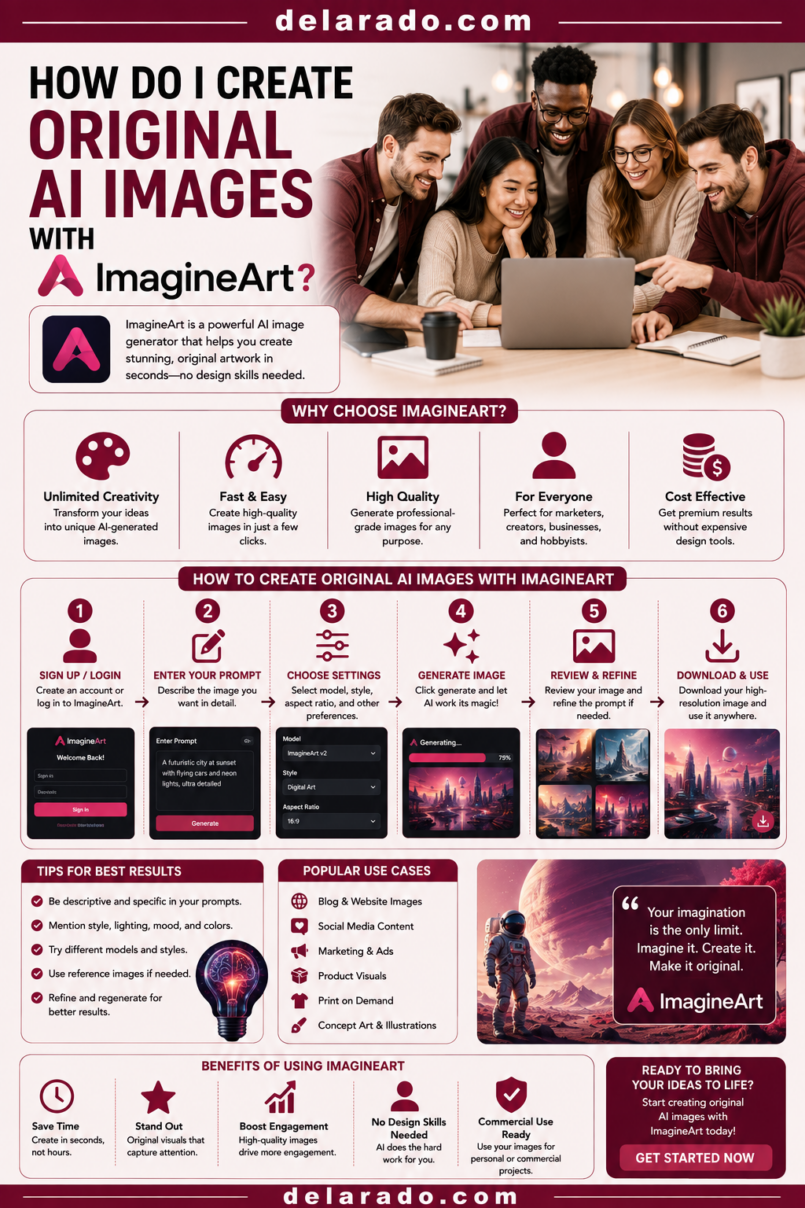
Step-by-Step ImagineArt Workflow
Step 1: Define the Image Purpose
Start by deciding what the image needs to do. A clear purpose leads to a more effective prompt and prevents you from generating decorative visuals with no practical use.
Possible Image Goals
- Illustrate a blog post
- Create a social-media graphic
- Create a thumbnail concept
- Create a course visual
- Create a website banner
- Create an email header
- Create a presentation visual
- Create a branded background
- Create a mood board
- Create a conceptual product scene
Example Goal
Create an original blog-header illustration for a beginner WordPress hosting guide. The image should suggest planning and website setup without showing a fake dashboard, a fake customer, or a specific hosting company.
Use a real product image or real screenshot when viewers need accurate product information. Use AI illustration when the goal is conceptual, educational, or decorative.
Step 2: Choose the Correct Image Type
Decide whether the image should be an illustration, diagram, abstract visual, product concept, social graphic, background, or photo-style scene.
Use Illustration for:
- Blog headers
- Educational topics
- Abstract business concepts
- Checklists
- Explainer visuals
- Course lessons
- Website backgrounds
Use Real Photography for:
- Real products
- Real employees
- Real customers
- Real business locations
- Before-and-after results
- Product packaging
- Product features
- Event documentation
Use a Diagram for:
- Processes
- Frameworks
- Timelines
- Step-by-step instructions
- Comparisons
- Customer journeys
- System explanations
Choose a format that communicates honestly. Do not use a photo-realistic AI image if viewers could reasonably think it documents a real place, person, product, or event.
Step 3: Write a Detailed Prompt
A detailed prompt gives the tool clear creative direction. Include the subject, purpose, composition, color palette, visual style, lighting, angle, aspect ratio, exclusions, and any required space for text.
Prompt Formula
Subject + purpose + composition + style + color palette + lighting + aspect ratio + constraints
Weak Prompt
Make a picture about websites.
Stronger Prompt
Clean editorial illustration for a beginner WordPress hosting guide: an organized desk with a generic laptop showing simple abstract website blocks, a domain-name card, a cloud backup icon, and a small checklist. Soft navy, light blue, and warm yellow palette. Flat modern vector style, generous whitespace on the left for a headline, no people, no readable text, no logos, no brand names, landscape 16:9 composition.
Social Graphic Prompt
Minimal square social-media illustration for a “Website Launch Checklist” post. A simple website window, a checkmark list, a small domain icon, and a cloud-backup symbol. Clean black line art with navy and yellow accent colors. High contrast, modern editorial style, blank top area for added text, no words in the generated image, no logos, no people.
ImagineArt says its image generator can turn text prompts into images and its reference-image tools can use a supplied image to guide composition, style, and elements. [1269][1273]
Step 4: Add Useful Constraints
Constraints help reduce unwanted output. Tell the generator what to avoid when an unwanted detail could make the image inaccurate, unusable, or misleading.
Useful Constraints
- No logos
- No readable text
- No brand names
- No people
- No faces
- No hands
- No watermarks
- No product labels
- No medical imagery
- No fake dashboards
- No celebrity likenesses
- No copyrighted characters
Why This Matters
AI image generators can invent signs, labels, product packaging, interface text, logos, and people. Adding constraints makes it easier to create a visual that can safely support your message.
Example Constraint Addition
Use generic visual symbols only. No readable text, no company logos, no branded computer interfaces, no people, and no real-world claims.
Step 5: Use Reference Images Responsibly
Reference images can help guide the composition, color palette, style, or layout of a generated image. Only use images you created, licensed, or have permission to use.
Appropriate Reference Images
- Your own photographs
- Your own sketches
- Your own brand mood board
- Your logo and approved color palette
- Licensed stock images
- Client-provided images with permission
- Original product mockups
- Original diagrams
Do Not Use These as References Without Permission
- Another artist’s work
- Competitor ads
- Celebrity photos
- Customer images
- Employee photos
- Private family photos
- Images found through search engines
- Paid stock images outside their license scope
- Movie screenshots
- Trademarked product images
ImagineArt says its AI can analyze the style, composition, and elements of a reference image to guide new image generation. That makes permission and source tracking especially important. [1273]
Step 6: Generate Multiple Variations
Generate several versions rather than using the first result. This gives you more choice and helps you identify output errors before building the image into a campaign, article, video, or product page.
Compare Variations For:
- Clear subject focus
- Correct composition
- Brand color fit
- Image balance
- Available space for text
- Visual accuracy
- Unwanted text or logos
- Distorted anatomy
- Unrealistic object details
- Appropriate visual tone
Regenerate If the Image:
- Includes incorrect text
- Shows a recognizable but unauthorized brand
- Looks like a real customer or employee
- Shows a false product feature
- Uses an unwanted artist-like style
- Contains distorted hands, faces, or objects
- Does not leave space for your headline
- Contradicts the article or campaign message
Do not choose an image simply because it is visually dramatic. Choose an image that supports the content accurately and responsibly.
Step 7: Edit the Image Manually
Human editing can make an AI image more useful, more brand-specific, and more connected to your real content. It can also add meaningful human creative contribution.
Useful Manual Edits
- Crop and resize
- Adjust color balance
- Add your own title text
- Add your own logo
- Add original icons
- Place the image into an original layout
- Add verified data or labels
- Combine it with original photos
- Use it in a manually designed carousel
- Turn it into a branded video frame
Editing Tools That May Help
- Canva
- Adobe Express
- Photoshop
- Figma
- Affinity Photo
- CapCut
Congressional Research Service guidance explains that copyright protection can apply to human-authored contributions, including sufficiently creative selection, arrangement, or modification of AI-generated material, even when AI-generated elements themselves are not protected. [1261]
Step 8: Add Verified Text Outside the Generator
Do not rely on an AI image generator to produce important written information such as prices, product names, instructions, URLs, statistics, legal disclosures, labels, or calls to action. Add verified text manually in a design editor.
Add These Manually:
- Article titles
- Product names
- Prices
- Statistics
- Steps and checklists
- Dates
- URLs
- Call-to-action text
- Affiliate disclosures
- Sponsorship disclosures
Example
Generate a clean background illustration with space for text, then use Canva or another editor to add the verified headline: “3 Things to Check Before Choosing WordPress Hosting.”
This reduces the risk of publishing gibberish, inaccurate text, fake product labels, or misleading claims generated inside an image.
Step 9: Use Images Honestly
Make it clear whether an image is illustrative, conceptual, decorative, or real. This is especially important when an AI image looks realistic.
Consider Labeling an Image When It Is:
- A realistic AI-generated person
- A fictional business environment
- A conceptual product scene
- An imagined event
- An illustrative before-and-after visual
- A realistic location or architectural scene
- A synthetic image used in a news-like context
Disclosure Examples
- AI-generated illustration.
- Concept image for illustrative purposes.
- AI-generated visual; not a photograph of a real customer or location.
- Illustration only; product appearance may vary.
Do Not Use AI Images To:
- Create fake testimonials
- Fabricate product reviews
- Show false customer results
- Invent real-world events
- Present a fictional office as your business location
- Show a fake product demonstration
- Create false social proof
- Impersonate a person or brand
Good visual design improves understanding. It should not make viewers believe unsupported claims.
Step 10: Check Commercial Rights
Before using an ImagineArt image on a monetized website, product package, business social account, paid ad, course, client project, or other commercial work, confirm the rights available under your current account.
Questions to Ask
- Is my plan personal, trial, or commercial?
- Does my plan permit monetized content?
- Can I use the image in paid advertising?
- Can I use it in client work?
- Can I use it on product packaging?
- Can I use it in a paid course?
- Do I need to provide attribution?
- What rights do I grant when uploading reference images?
- Are generations private or public?
- Are there prohibited commercial use cases?
ImagineArt’s terms say free or trial plans may limit outputs to personal, non-commercial use unless explicitly permitted. Its terms say paid subscribers or users with an appropriate commercial license may use outputs in business projects, products, and monetized content. [1266][1268]
Step 11: Publish in the Right Format
Create or crop the final image for the platform where it will appear. An image that works as a blog header may not work as a Pinterest Pin, social post, Reel cover, or YouTube thumbnail.
Common Format Uses
- Landscape images for blog headers and YouTube thumbnails
- Square images for many social posts
- Vertical images for Pinterest, Stories, and some mobile content
- Wide images for website banners
- Presentation dimensions for slides and educational content
- Transparent or clean backgrounds for overlays and graphics
Final Image Checklist
- Is the visual relevant to the content?
- Is it clear on mobile?
- Does it contain unwanted text or logos?
- Does it make an accurate impression?
- Are all claims separately verified?
- Is disclosure needed?
- Do you have commercial rights for the intended use?
- Does it fit the platform dimensions?
- Does it match your brand?
ImagineArt Prompt Examples
Blog Header Image
Clean editorial illustration for a beginner guide to starting a website: an abstract laptop, a checklist, a domain card, and a cloud backup icon on a spacious desk. Soft navy, light blue, and warm yellow palette. Modern flat vector style. Landscape 16:9. Leave clean space on the left for a title. No people, no readable text, no logos, no brand names.
Social Media Graphic Background
Minimal square illustration for a social-media post about content planning. A neat calendar, a pen, a small phone, a checklist, and floating content cards. Warm cream background with navy and yellow accents. Simple editorial vector style. High contrast. Blank top area for text. No words, no logos, no people.
Educational Diagram Background
Clean abstract infographic-style background showing a three-step website launch journey: idea, build, publish. Use generic icons only: lightbulb, website window, rocket. Professional blue and white palette, clear spacing between elements, no labels, no readable text, no logos, horizontal presentation format.
Course Visual
Friendly, modern illustration for an online course lesson about organizing business systems. Show abstract folders, a workflow board, a calendar, and connected checkmarks. Soft blue, green, and neutral palette. Clean flat illustration, no people, no text, no logos, landscape composition with room for a lesson title.
Product Concept Background
Conceptual studio illustration of a generic unbranded skincare bottle on a soft beige surface with subtle botanical shadows. Minimal luxury editorial style. No label, no text, no brand marks, no medical claims, no before-and-after imagery, square composition for social media.
Image Ideas by Business Type
For Bloggers and Affiliate Marketers
- Blog-header illustrations
- SEO concept visuals
- Keyword research diagrams
- Website setup illustrations
- Checklist graphics
- Tool-comparison backgrounds
- Lead magnet covers
- Pinterest Pin visuals
For eCommerce Businesses
- Campaign backgrounds
- Gift-guide graphics
- Seasonal concept images
- Collection mood boards
- Product category visuals
- Decorative packaging concepts
- Social-media background assets
- Email header illustrations
For Consultants and Agencies
- Framework illustrations
- Process diagrams
- Presentation graphics
- Social carousel backgrounds
- Webinar visual assets
- Report-cover concepts
- Workflow illustrations
- Lead magnet covers
For Course Creators
- Module cover graphics
- Lesson illustrations
- Worksheet covers
- Course-promotion graphics
- Abstract topic visuals
- Framework diagrams
- Social-media lesson previews
- Student resource illustrations
For Local Businesses
- Seasonal campaign backgrounds
- Service process illustrations
- Appointment preparation graphics
- Local guide visual concepts
- Educational social posts
- Gift certificate visuals
- FAQ graphics
- Website-banner illustrations
Programs That Can Help
ImagineArt
ImagineArt can create AI-generated images from text prompts and reference inputs, with tools for graphic design, editing, and reference-guided generation. Its terms distinguish between potentially limited free or trial use and commercial use by paid subscribers or users with a proper commercial license. [1269][1273][1266]
Canva
Canva can help add verified text, logos, brand colors, layouts, calls to action, disclosures, social-media sizing, and reusable templates to AI-generated illustrations.
Adobe Express
Adobe Express can help create social graphics, resize images, add captions and text, build branded templates, and prepare campaign assets.
Photoshop or Affinity Photo
Image-editing software can help clean up AI output, remove unwanted details, retouch backgrounds, add original design elements, create composites, and prepare final assets.
Figma
Figma can help place AI-generated images into website mockups, app concepts, design systems, presentation layouts, and collaborative visual projects.
CapCut
CapCut can help turn AI images into short video slideshows, add text overlays, animate visuals, add captions, and create content for Reels, TikTok, and YouTube Shorts.
Common Mistakes
Using Vague Prompts
Vague prompts often produce generic images. Include the subject, purpose, composition, style, colors, aspect ratio, and restrictions.
Publishing the First Image
Generate multiple variations and inspect every result. Look for distorted anatomy, invented logos, bad text, inaccurate details, and visual inconsistencies.
Generating Fake Text Inside Images
Do not rely on image generators for titles, prices, URLs, product names, legal language, statistics, or calls to action. Add verified text in a design editor.
Using AI Images as Fake Evidence
Do not use generated people, places, products, reviews, charts, screenshots, or events as though they are real proof of a customer, business, product, or result.
Copying Artists or Brands
Avoid prompts designed to replicate a living artist’s recognizable style or another company’s branding, packaging, logo, trade dress, character, or copyrighted work.
Uploading Unauthorized References
Only use source images you own, license, or have permission to use. Do not upload customer images, employee photos, competitor assets, celebrity images, or images found online without clear rights.
Ignoring Commercial-Use Rules
Free and trial plans may limit outputs to personal use. Confirm your current ImagineArt plan and terms before using outputs in advertising, monetized content, client projects, products, or packaging. [1266][1268]
Assuming Full Copyright Protection
In the United States, fully AI-generated images may not qualify for copyright protection. Human-authored editing, selection, arrangement, and other contributions may be relevant, but copyright analysis is fact-specific. [1261][1265]
Not Labeling Realistic AI Imagery
When a realistic generated image could make viewers think it depicts a real person, location, event, product, or result, use clear language that it is illustrative or AI-generated.
Using AI Instead of Real Product Photography
For product listings, demonstrations, packaging, fit, colors, materials, safety information, and performance claims, use accurate real product images unless the conceptual nature of the AI image is obvious and clearly disclosed.
Frequently Asked Questions
What is ImagineArt used for?
ImagineArt can create AI-generated images from text prompts and reference images. It can support blog graphics, social visuals, conceptual illustrations, mood boards, presentations, thumbnails, product concepts, and educational assets. [1269][1273]
Can I use ImagineArt images commercially?
ImagineArt says free or trial users may be limited to personal, non-commercial use unless explicitly permitted. It says paid subscribers or users with a proper commercial license can use outputs commercially, including for business projects and monetized content. Verify the current terms for your specific account. [1266][1268]
Do I own the copyright to an AI-generated image?
That depends on jurisdiction and the facts of the work. U.S. guidance says copyright protects human authorship, not material generated entirely by AI. Your original human contributions—such as creative editing, arrangement, and modification—may be protectable in some situations. [1261][1265]
Can I use AI images on my business website?
Possibly, if your plan permits commercial use and the image does not violate third-party rights or mislead visitors. Use AI images as illustrations or concepts, and use real photography when showing actual products, people, locations, testimonials, or results.
Can I use an artist’s work as a reference image?
Only if you have appropriate permission or a valid license. Do not upload another artist’s work or ask the generator to imitate a living artist’s recognizable style without authorization.
How can I make my AI images more original?
Start with your own concept, write detailed prompts, use your approved brand palette, use original or licensed references, generate multiple variations, make manual design edits, add verified text yourself, and combine the result with your own layout or photography.
Should I disclose that an image is AI-generated?
Disclosure is especially appropriate when a realistic AI image could be mistaken for a real person, customer, product, office, location, event, or outcome. A label such as “AI-generated illustration” can reduce confusion.
Can I use AI images for product listings?
Use real product photography for products you sell. AI images can support conceptual marketing or lifestyle backgrounds only if they do not misrepresent product appearance, packaging, quality, size, color, materials, or performance.
Can I use AI-generated people in marketing?
Use caution. Do not present an AI-generated person as a customer, employee, expert, reviewer, or user of your product. If the image is realistic and could create confusion, disclose that it is AI-generated or use a clearly illustrative style instead.
What should I check before publishing?
Review visual accuracy, source and commercial rights, unwanted logos or text, brand consistency, any misleading implication, platform dimensions, needed disclosures, verified written claims, and the connection between the image and the content it supports.