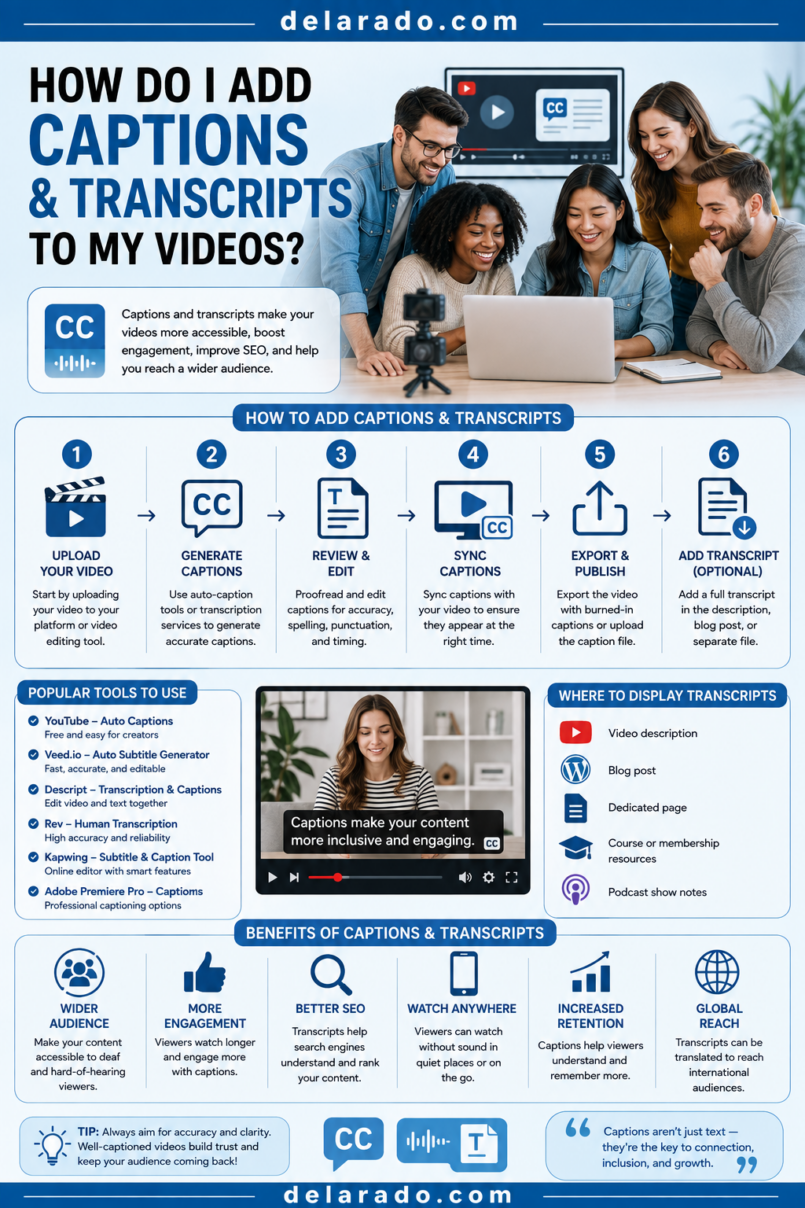
To add captions and transcripts to your videos, first create or upload a transcript, turn it into time-synced captions, review every word and timestamp, then publish the caption track and make the transcript easy to access. Automatic captioning can speed up the process, but it should be treated as a draft—not a finished accessibility solution.
Captions are synchronized with the video and include spoken dialogue plus meaningful sounds. A transcript is a separate text version of the spoken and important audio content; for videos where important visual information is not explained in speech, a complete transcript may also need descriptions of key visual information.
W3C explains that captions and transcripts include the same text, so one can be used to develop the other. Section508.gov recommends synchronizing captions with speech and meaningful sound, using correct spelling and punctuation, and keeping captions visible long enough to read. [1307][1132]
Captions vs. Transcripts
Captions and transcripts are related, but they serve different purposes. Use both whenever practical.
| Feature | Captions | Transcript |
|---|---|---|
| Where it appears | On screen, synchronized with video | As a separate text document or webpage |
| Timing | Includes timestamps and appears with the related audio | Usually readable without timestamps |
| Spoken dialogue | Included | Included |
| Important sounds | Included where relevant | Included where relevant |
| Primary benefit | Lets viewers follow video without hearing audio | Lets viewers read, search, save, print, or review the content |
| Useful for SEO and repurposing | Indirectly | Yes, when published accessibly with useful context |
Captions provide a time-synchronized text version of speech and non-speech audio. Transcripts provide the written content separately, and may include visual descriptions when that information is necessary to understand the video. [1307][1132]
Why Add Both?
Accessibility
Captions make spoken content available to people who are deaf or hard of hearing, as well as viewers who cannot play audio in their environment. W3C’s WCAG guidance explains that captions for prerecorded synchronized media support people who are deaf or hard of hearing. [1308]
Sound-Off Viewing
Many people watch videos with sound muted on social media, public transit, in offices, or in shared spaces. Captions make the core message easier to follow.
Searchable Content
A transcript makes the video easier to search, quote, review, repurpose, and turn into articles, email content, course notes, show notes, or social posts.
Better Learning Support
Viewers can reread technical terms, instructions, names, prices, steps, and definitions instead of replaying a video repeatedly.
Language Support
Caption files can be translated or adapted into additional languages, helping more viewers understand your content.
Clearer Editing
A transcript makes it easier to identify weak explanations, repeated points, filler words, inaccurate claims, and sections that should be shortened or clarified.
What Good Captions Include
Good captions communicate the audio information needed to understand the video. They should be accurate, readable, synchronized, and consistent.
Include:
- Spoken dialogue
- Important sound effects
- Relevant music descriptions
- Speaker identification when needed
- Meaningful audience reactions
- Important audio cues
- Correct names and terminology
- Correct numbers, dates, prices, and URLs
Sound Description Examples
- [Music playing]
- [Door closes]
- [Phone notification]
- [Applause]
- [Laughter]
- [Screen-recording audio]
- [Keyboard typing]
- [Alarm sounds]
Speaker Labels
Host: Welcome to the tutorial.
Guest: The first thing to check is your backup process.
Section508.gov recommends captions include all dialogue, either verbatim or in essence, along with important sounds, and use consistent conventions for speakers, sound effects, and music. [1132]
What Good Transcripts Include
A useful transcript contains the spoken content and important sound information in a format people can read separately from the video.
Include in a Transcript:
- Video title
- Speaker names
- Complete spoken dialogue
- Important sounds
- Relevant visual descriptions
- Links or resources mentioned
- Correct technical terms
- Clear paragraph breaks
- Headings for long videos
- Chapter markers if helpful
Example Transcript Format
Video title: How to Create Captions in CapCut
Host: In this tutorial, I’ll show you how to create and edit captions in CapCut.
[Screen recording shows the CapCut editor.]
Host: First, open your project and select the Text menu.
[Soft background music begins.]
Host: Then choose Auto Captions and select the language used in your video.
Section508.gov recommends making transcripts available in the same place as the original media and providing them in an accessible format such as a conformant web page, plain-text file, or accessible document. [1132]
Step-by-Step Caption Workflow
Step 1: Start With a Clean Script
If your video uses a script, save the final approved version. This gives you a useful starting point for captions and transcripts.
Script Checklist
- Is every claim accurate?
- Are names spelled correctly?
- Are product names correct?
- Are technical terms correct?
- Are prices and dates current?
- Are links accurate?
- Are disclosures included?
- Does the script match the final recording?
Even when you start with a script, compare it against the final recording. Speakers may change wording, skip sections, add examples, or make corrections while recording.
Step 2: Generate a First Transcript
You can create a first transcript manually, use a platform’s automatic captions, upload a transcript created in another tool, or hire a captioning service. Automatic transcription is often the fastest starting point, but always review it.
Ways to Create a Transcript
- Write it manually from the final recording
- Use YouTube automatic captions as a draft
- Use Descript transcription
- Use CapCut auto captions
- Use a professional captioning service
- Use a speech-to-text tool and edit the result
- Start with your original script and compare it to the recording
YouTube uses speech-recognition technology to automatically create captions for eligible videos, but automatic captions can contain errors and should be reviewed. [1309]
Step 3: Correct the Transcript
Review the transcript before turning it into final captions. Fix words that affect meaning first.
Correct These Carefully:
- Names
- Company names
- Product names
- Technical terms
- Industry acronyms
- Dates
- Prices
- Phone numbers
- URLs
- Numbers and measurements
- Legal, medical, or financial terms
Example
Automatic caption: “Open the WordPress plug in screen.”
Corrected caption: “Open the WordPress Plugins screen.”
Small transcription errors can confuse viewers, make a tutorial harder to follow, and damage trust in the video.
Step 4: Add Important Sound Cues
Captions should include non-speech sounds when the sound contributes to meaning, mood, instruction, or context.
Add a Sound Cue When:
- A sound signals an action
- Music changes the meaning or mood
- An alarm, notification, or error sound matters
- Audience laughter or applause matters
- A speaker is not visible
- A sound is part of a tutorial step
- An off-screen action needs context
Examples
- [Error notification sounds]
- [Upbeat music plays]
- [Audience applause]
- [Doorbell rings]
- [Keyboard typing]
- [Video call connection sound]
Do not add every minor background sound. Focus on sounds that help viewers understand what is happening.
Step 5: Divide Text Into Caption Blocks
Break captions into short readable units. Avoid placing long paragraphs on screen all at once.
Caption Formatting Guidelines
- Use short phrases or sentences
- Use sensible line breaks
- Avoid splitting names or phrases awkwardly
- Keep captions on screen long enough to read
- Use consistent punctuation
- Use speaker labels only when needed
- Do not cover key visual information
- Use high contrast and readable size
Weak Caption Block
Before you choose WordPress hosting you need to compare support backups performance pricing storage security uptime and whether you can upgrade later because choosing the cheapest plan can create problems for your website.
Stronger Caption Blocks
Before choosing WordPress hosting,
compare support, backups, and performance.
Also check whether the plan can grow with your website.
Section508.gov recommends keeping captions on screen long enough for viewers to read and synchronizing the text with the associated speech or meaningful sound. [1132]
Step 6: Synchronize Caption Timing
Captions should appear when the corresponding speech or meaningful sound occurs. Poor timing can make a video harder to understand even when the words are correct.
Timing Checklist
- Does each caption start with the relevant speech?
- Does it remain visible long enough to read?
- Does it end before the next unrelated statement?
- Do caption changes follow a natural speaking rhythm?
- Are important sound cues timed correctly?
- Do captions avoid flashing too quickly?
- Are captions aligned with speaker changes?
Review Tip
Watch the complete video with audio muted. If you can understand the main message, speakers, steps, and important sound cues using captions alone, the caption timing and content are likely on the right track.
Step 7: Export a Caption File
Most video platforms accept timed caption files. Common formats include SRT, VTT, and other subtitle-file types.
Common Caption Formats
- SRT: A common subtitle format with numbered caption blocks and timestamps.
- VTT: A web-video text format commonly used for online video.
- TXT: Plain text often used for transcripts, usually without timing.
- DOCX or PDF: Document formats that can be useful for downloadable transcripts, if created accessibly.
Basic SRT Example
1
00:00:00,000 --> 00:00:03,500
Before you choose WordPress hosting,

2
00:00:03,500 --> 00:00:07,000
compare these three things.
Use the file format requested by your publishing platform. Check its current upload instructions and file requirements before exporting.
Step 8: Add Captions in YouTube Studio
You can add captions during upload or later through YouTube Studio. YouTube lets creators upload a timed caption file, auto-sync plain transcript text, type captions manually, or review automatic captions.
YouTube Caption Workflow
- Sign in to YouTube Studio
- Select Subtitles from the left menu
- Select the video you want to caption
- Add or select the language
- Choose to upload a file, auto-sync, type manually, or edit existing captions
- Review text and timing
- Publish the completed caption track
YouTube’s Help guidance says creators can access captions by selecting Subtitles in YouTube Studio, choosing a video, adding a language, and then uploading, auto-syncing, or manually entering subtitles. [1309]
How to Edit YouTube Auto Captions
- Open YouTube Studio
- Select Subtitles
- Choose the video
- Find the automatic caption track
- Duplicate and edit the automatic captions
- Correct text, punctuation, names, sound cues, and timing
- Publish the edited captions
Automatic captions are generated by speech recognition. YouTube provides tools to edit them, but the creator remains responsible for checking their accuracy. [1309][1310]
Step 9: Create and Publish a Transcript
After correcting the caption text, create a readable transcript. Remove timestamps unless viewers need them, then add headings, speaker labels, descriptions, and links as appropriate.
Where to Publish a Transcript
- Below the embedded video on your website
- In a linked transcript page
- As a downloadable plain-text file
- As an accessible document
- In course lesson notes
- In podcast show notes
- In a blog post supporting the video
Transcript Structure for Long Videos
Introduction
Step 1: Choose the video language
Step 2: Generate automatic captions
Step 3: Correct names and technical terms
Step 4: Review timing
Conclusion and resources
Section508.gov recommends placing transcripts in the same location as the original content and making them available in an accessible format. [1132]
Step 10: Describe Important Visual Information
Captions alone do not describe visual information that is not spoken aloud. If a tutorial depends on a screen, chart, demonstration, product feature, or visual change, make that information available through narration, audio description, or a detailed transcript.
Important Visual Information May Include:
- Which button to click
- Which menu is open
- What appears in a chart
- What product feature is being shown
- What a speaker demonstrates
- Changes in an interface
- A displayed warning or error message
- Relevant on-screen text
Weak Tutorial Narration
Click here, then choose this option.
Stronger Tutorial Narration
In the left menu, select Text, then choose Auto Captions. Set the caption language to English and click Generate.
Describe key visual actions in narration whenever possible. This improves the tutorial for all viewers, not only people using captions or transcripts.
Step 11: Add Translated Caption Tracks
Translated captions can help reach viewers who speak other languages, but they need review. Automated translation can make mistakes with names, technical terms, idioms, product names, and context.
Translation Checklist
- Use the correct target language
- Review product names and trademarks
- Review technical terminology
- Check dates, prices, and numbers
- Check cultural context and tone
- Keep captions readable and well timed
- Use a qualified translator for important commercial, legal, health, or safety content
Do not publish machine-translated captions without review when accuracy could affect a viewer’s decision, safety, money, health, legal rights, or understanding of your product.
Step 12: Review Before Publishing
Watch the video from beginning to end with captions enabled, then read the transcript separately. This final check catches timing, spelling, context, and accessibility issues.
Final Caption Review Checklist
- Does every caption match the spoken audio?
- Are names and brands correct?
- Are technical terms correct?
- Are numbers, dates, and prices correct?
- Are important sounds included?
- Are speaker labels used where needed?
- Is caption timing accurate?
- Is text readable on a phone?
- Do captions avoid important on-screen controls?
- Are captions long enough to read?
- Does the transcript contain the full meaningful content?
- Are visual actions explained through narration or transcript notes?
Final Transcript Review Checklist
- Does it match the final video?
- Does it include important sound cues?
- Does it identify speakers where needed?
- Does it describe important visual information?
- Are headings and paragraphs clear?
- Are links and resources correct?
- Is it available near the original video?
- Is the file or webpage accessible?
Tools That Can Help
YouTube Studio
YouTube Studio can generate automatic captions for eligible videos and lets creators upload caption files, auto-sync transcripts, type captions manually, or edit caption tracks in the Subtitles section. [1309]
Descript
Descript can transcribe video and audio, let you edit through the transcript, create captions, export subtitle files, and prepare readable transcripts for websites, courses, podcasts, and social content.
CapCut
CapCut can generate auto captions for video, allow caption editing, and help format readable captions for short-form content. Review its output manually before publishing.
Adobe Premiere Pro
Adobe Premiere Pro can help generate transcripts, create captions, adjust caption style and timing, export caption files, and integrate captioning into professional editing workflows.
Canva
Canva can help create captioned social videos, add readable on-screen text, design transcript PDFs, create visual summaries, and build branded educational resources.
Professional Captioning Services
A professional captioning service may be appropriate for highly technical, legal, medical, financial, academic, government, broadcast, or high-stakes content where accuracy is especially important.
Captions for Different Video Types
YouTube Tutorials
- Caption all spoken instructions
- Correct software names and technical terms
- Describe key screen actions in narration
- Add chapters and a searchable transcript
- Use caption placement that does not cover menus or buttons
Short-Form Video
- Use large readable captions
- Keep each caption short
- Use strong contrast
- Keep text inside mobile-safe areas
- Check that platform buttons do not cover captions
- Remove decorative motion that makes text hard to read
Podcasts and Interviews
- Identify speakers
- Include important sound cues
- Correct names and references
- Offer a full transcript on the episode page
- Use headings for major topics
Course Videos
- Provide accurate captions
- Offer downloadable transcripts
- Describe charts, slides, and visual demonstrations
- Use clear speaker labels
- Review translated content carefully
Product Videos
- Caption accurate product claims
- Use real product names and features
- Do not use captions to imply unsupported performance
- Describe important demonstrations honestly
- Include required disclosures where relevant
Common Mistakes
Publishing Unedited Automatic Captions
Automatic captions can mishear names, technical terms, numbers, prices, URLs, accents, and industry language. Always review them before relying on them. [1309][1310]
Captions That Are Out of Sync
Captions should appear with the corresponding speech or sound. If captions arrive too early, too late, or disappear too quickly, viewers may struggle to follow the video. [1132]
Leaving Out Important Sounds
If an alarm, error tone, audience response, music change, or off-screen sound matters to the meaning, include it in captions.
Using Long Paragraphs on Screen
Break captions into short readable blocks. Long unbroken text is difficult to read, especially on mobile devices.
Covering Important Visuals
Place captions where they do not obscure tutorial controls, product details, faces, charts, or on-screen instructions.
Not Providing a Transcript
Captions help during playback, but a transcript gives viewers a separate readable, searchable, and printable version of the content.
Not Describing Key Visual Information
Captions do not replace narration of important screen actions, visual demonstrations, charts, or product details. Explain what viewers need to know.
Using Machine Translation Without Review
Translated captions can be inaccurate. Review technical terms, product names, idioms, prices, dates, and safety information before publishing.
Ignoring Accessibility in Short Videos
Short-form captions should be large, high contrast, correctly timed, and kept away from platform controls. Decorative animated text is not a substitute for readable captions.
Failing to Update Captions After Editing
If you change the narration, remove a scene, update a price, or replace a product detail, update the captions and transcript so they continue to match the final video.
Frequently Asked Questions
What is the difference between captions and transcripts?
Captions are synchronized text shown during video playback. A transcript is a separate written version of the spoken content and important sounds. Captions and transcripts generally contain the same core text, but a transcript may provide more context and visual descriptions. [1307][1132]
Do I need both captions and a transcript?
Using both is a strong practice. Captions support viewers during playback, while transcripts are searchable and can be read separately. For video with important visual information not spoken aloud, add visual descriptions through narration or a detailed transcript.
Can I use YouTube automatic captions?
Yes, automatic captions can be a useful draft. YouTube uses speech-recognition technology to generate them, but you should review and edit them for accuracy before publishing. [1309]
How do I add captions to a YouTube video?
In YouTube Studio, select Subtitles, choose the video, add the language, then upload a caption file, auto-sync a transcript, type captions manually, or edit existing automatic captions. Review the timing and publish the completed track. [1309]
What format should caption files use?
SRT and VTT are common timed caption formats. Use the format requested by the platform where you publish, and check current upload requirements before exporting.
Do captions need sound effects?
Include sound effects and other non-speech audio when they are meaningful to understanding the video, such as alarms, notifications, music changes, applause, off-screen actions, or important tutorial sounds. [1132]
How accurate should captions be?
Captions should accurately communicate the spoken dialogue and important sounds. Correct spelling, technical terms, names, numbers, timing, and context before publishing. [1132]
Can I use captions for social media videos?
Yes. Captions are especially useful for Reels, TikToks, Shorts, Facebook videos, LinkedIn videos, and other short-form content often watched without sound. Keep captions large, brief, high contrast, and clear on mobile.
Should I add translated captions?
Translated captions can help reach more viewers, but review them carefully. For high-stakes information, use a qualified translator rather than relying solely on machine translation.
Where should I publish a transcript?
Publish it near the original video, such as below an embedded video, on a linked transcript page, in course notes, in podcast show notes, or as an accessible downloadable file. Section508.gov recommends access to the transcript in the same place as the original content. [1132]