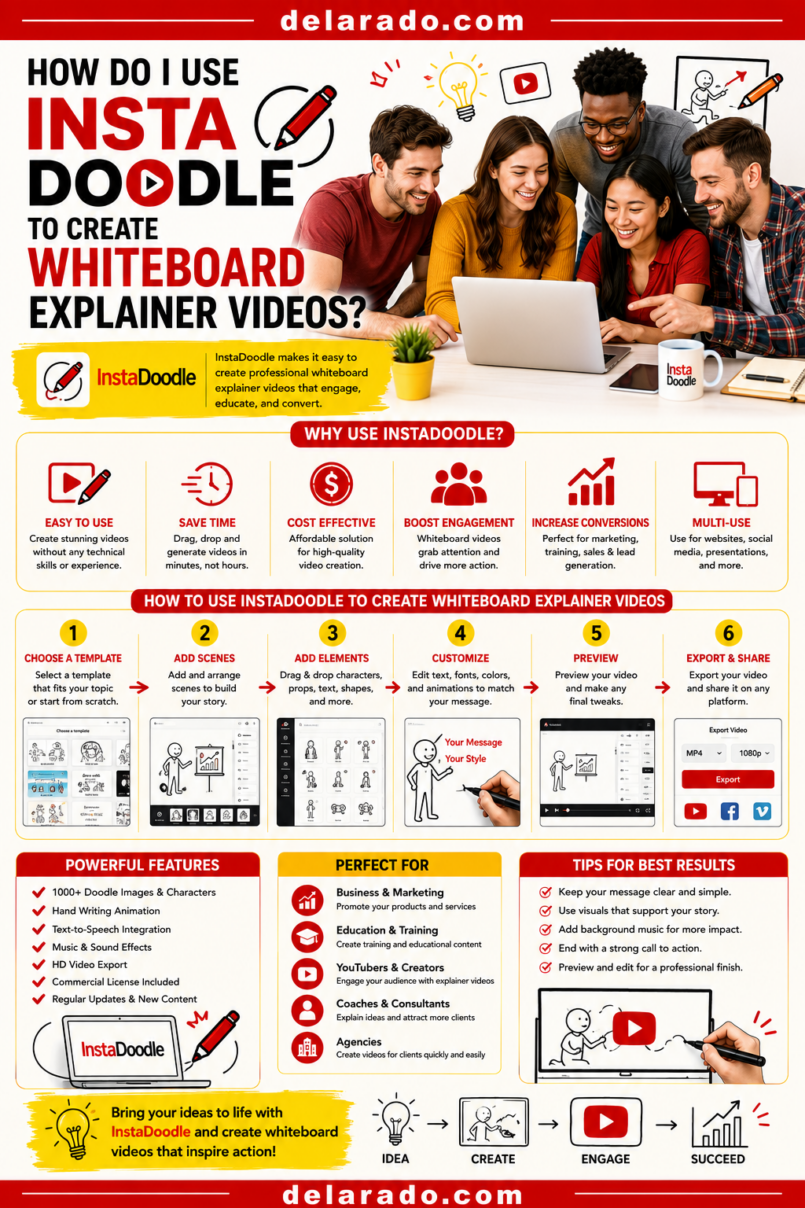
InstaDoodle can help you create whiteboard-style explainer videos by turning a script or prompt into animated doodle scenes. You can use its AI-generated doodle elements, templates, drag-and-drop editor, voiceover options, music, image-to-sketch tools, and cloud rendering to build simple educational, promotional, and training videos.
The best results begin with a clear script and a simple teaching goal. Whiteboard animation works especially well when you need to explain a process, answer a frequently asked question, introduce a product or service, teach a beginner concept, show a checklist, or break down a complex idea into short visual steps.
InstaDoodle describes itself as a cloud-based tool for AI-powered whiteboard animation. It says its DoodleAI engine can generate doodle characters and objects from text, while its editor also includes a library of doodle assets, uploaded-image conversion, voiceover support, background music, and cloud rendering. [1252]
Who Is This Topic For?
This guide is for bloggers, marketers, course creators, small businesses, local businesses, agencies, freelancers, consultants, YouTubers, social media managers, teachers, trainers, and anyone creating short educational or promotional videos.
This Article Is Helpful If You Want To:
- Create whiteboard explainer videos
- Create animated doodle videos
- Create faceless video content
- Create beginner-friendly tutorials
- Create product or service explainers
- Create social-media educational clips
- Create course lesson visuals
- Create website explainer videos
- Create sales-process explanations
- Turn scripts into simple animated videos
What Is InstaDoodle?
InstaDoodle is a cloud-based whiteboard-animation platform designed to create videos with hand-drawn doodles, animated text, simple scene transitions, voiceovers, and music. Users can create scenes manually with a drag-and-drop editor or use AI-assisted features to generate doodle elements from text prompts.
InstaDoodle May Help Create:
- Whiteboard explainer videos
- Animated doodle videos
- Educational tutorials
- Product explainers
- Service explanation videos
- Course lesson animations
- Social-media clips
- Sales-page videos
- FAQ videos
- Training materials
- Checklist videos
- Presentation visuals
According to InstaDoodle, its features include a drag-and-drop editor, more than 1,000 doodle elements, text-to-doodle generation, image importing, custom hand styles, voiceover support, background music, cloud rendering, and 1080p export options on certain plans. [1252]
Benefits of Whiteboard Videos
Explains Complex Ideas Simply
Whiteboard animation can turn an abstract topic into a sequence of short visual ideas. This can make processes, checklists, comparisons, and beginner explanations easier to follow.
Supports Faceless Content
You do not need to appear on camera. You can use illustrations, text, diagrams, icons, voiceover narration, and animated hand movements to explain the topic.
Works for Educational Content
Whiteboard videos are useful for how-to guides, lesson summaries, customer onboarding, product education, software explanations, internal training, and frequently asked questions.
Can Create a Consistent Style
Using the same colors, logo, font choices, hand style, illustration style, and narration tone can make a video series more recognizable.
Can Be Easier to Produce Than Filmed Video
For some topics, it may be faster to create a visual explainer from a script than to arrange a filming location, camera setup, actors, product shoot, and post-production workflow.
Useful for Content Repurposing
One blog post, checklist, webinar outline, product page, course lesson, or customer question can become an animated explainer video, a series of social clips, and a visual resource for your website.
Good for Short Attention Spans
Animated drawings and simple text can help guide viewers through one key point at a time, especially when paired with a concise voiceover and relevant captions.
Risks and Limitations
Whiteboard Style Does Not Make Content Original
Adding doodles to copied articles, reused video clips, or generic scripts does not automatically create original content. Your script, explanation, examples, visuals, and teaching should add meaningful value.
AI-Generated Doodles Can Be Inaccurate
AI may produce irrelevant objects, unclear illustrations, distorted details, missing labels, or scenes that do not match your script. Review every element before exporting.
Too Much Animation Can Distract
Every doodle, hand movement, transition, and sound effect should support the lesson. Excessive movement can make a simple explanation harder to understand.
Generic Scripts Create Generic Videos
A whiteboard animation tool cannot replace original expertise, fact-checking, product knowledge, clear teaching, or a useful call to action.
Commercial Rights May Depend on Your Plan
InstaDoodle promotes commercial-license and agency options, but rights can depend on the account, plan, assets, music, voiceover, and intended use. Confirm the current terms before using a video in commercial projects. [1252]
Voiceover Quality Matters
A weak voiceover can make a polished animation feel untrustworthy or hard to follow. Review pronunciation, pacing, volume, and accuracy before publishing.
Visuals Must Not Mislead
Do not use doodles, animated charts, fake dashboards, invented customer scenes, or fabricated before-and-after results as evidence of real business outcomes.
Best Uses for InstaDoodle
How-To Tutorials
Use doodle scenes to show a short process, explain steps, introduce terms, and summarize a practical action viewers can take.
Customer FAQ Videos
Turn common questions into short videos that explain what happens next, what a product includes, how an appointment works, or how to prepare for a service.
Product and Service Explainers
Use whiteboard animation to explain what a product or service does, who it is for, how the process works, and what viewers should do next.
Course Lessons
Use animated diagrams and doodles to explain frameworks, concepts, checklists, and lesson summaries alongside a course voiceover.
Lead Magnet Promotion
Create a short explainer that introduces a checklist, worksheet, webinar, guide, template, or email course.
Sales Process Education
Explain the process of booking a consultation, requesting a quote, receiving a service, reviewing an estimate, or starting a project.
Internal Training
Create basic onboarding, process, compliance, customer service, or software training videos for employees and contractors.
When Whiteboard Video Is Not Best
Real Product Demonstrations
If viewers need to see the real product’s material, size, color, assembly, packaging, or functionality, use actual product footage rather than doodle animation.
Customer Testimonials
Use real customer testimonials with permission. Do not create fictional doodle customers, fake reviews, or invented success stories.
Behind-the-Scenes Claims
Use real video if you say you are showing your office, staff, workshop, manufacturing process, appointment process, or business location.
Highly Emotional Stories
Personal stories, difficult news, sensitive customer issues, health matters, legal matters, and crisis communication may require a real person and more direct human communication.
Complex Software Demonstrations
For a detailed software tutorial, combine whiteboard scenes with original screen recordings so viewers can see the actual clicks and settings.
Step-by-Step InstaDoodle Workflow
Step 1: Choose One Clear Video Goal
Start with a single purpose. The goal should guide the script, visuals, length, call to action, and publishing platform.
Possible Video Goals
- Explain one concept
- Answer one customer question
- Promote a free checklist
- Introduce a product
- Explain a service process
- Create a course lesson
- Show three useful tips
- Explain a common mistake
- Introduce a webinar
- Create a social-media clip
Example Goal
Create a 60-second whiteboard video for beginner bloggers explaining three things to compare before choosing WordPress hosting, then invite viewers to download a free Website Launch Checklist.
Do not try to explain an entire business, course, or technical topic in one short whiteboard video.
Step 2: Define the Audience
Identify who the video is for, what they already know, what problem they have, and what action they should take after watching.
Audience Questions
- Who is the viewer?
- What level of knowledge do they have?
- What problem are they trying to solve?
- What terms might confuse them?
- What is the most useful next step?
- What concerns or objections might they have?
- What information do they need before deciding?
Example Audience
Beginning bloggers who want to build a WordPress site, have limited technical experience, and need simple explanations before choosing web hosting.
Step 3: Write an Original Script
Write the script before generating doodles. The script should be original, accurate, concise, and easy to understand when spoken aloud.
Simple Explainer Structure
- Hook
- Problem or question
- Key explanation or steps
- Example or reminder
- Summary
- Relevant call to action
Example Script
Before you choose WordPress hosting, compare three things.
First, check whether help is available when you need it.
Second, understand how backups and restores work.
Third, choose a plan that can grow with your website.
For the full beginner checklist, download the free Website Launch Checklist from the link below.
Script Checklist
- Is it accurate?
- Is it original?
- Does it use plain language?
- Does it explain one topic?
- Does it avoid exaggerated claims?
- Does it include a useful example?
- Does it have a relevant call to action?
Do not copy competitor scripts, videos, articles, tutorials, or course material without permission and meaningful transformation.
Step 4: Break the Script Into Scenes
Give each sentence or idea its own simple scene. Whiteboard videos work best when the viewer can understand one visual point at a time.
Scene Plan Example
Scene 1: A doodle laptop and headline: “Choosing WordPress Hosting?”
Scene 2: A support headset and chat icon: “1. Check Support”
Scene 3: A backup cloud and restore arrow: “2. Understand Backups”
Scene 4: A growing plant beside a website icon: “3. Leave Room to Grow”
Scene 5: Checklist doodle and call to action: “Get the Free Website Launch Checklist”
Good Scene Rules
- Use one main idea per scene
- Keep text short
- Use visuals that match the narration
- Use consistent colors and hand styles
- Leave enough time to read
- Use transitions only when they improve flow
Step 5: Choose a Template or Start Blank
You can begin with a template when the structure fits your goal, or create a blank project when you need more control over the scenes and branding.
Use a Template When:
- You need a quick starting point
- The format fits a simple explainer
- You are creating a short social clip
- You are making a repeatable series
- You need consistent structure across videos
Start Blank When:
- You need custom scene order
- You have a specific brand visual style
- You are using original diagrams or screenshots
- You are creating a detailed course lesson
- You want to import custom assets
Templates are a starting point. Replace generic copy, irrelevant doodles, and default calls to action with material that serves your actual audience.
Step 6: Create or Select Doodle Elements
Use InstaDoodle’s built-in elements or its text-to-doodle features to add simple visual representations of each script point.
Useful Doodle Categories
- People
- Computers and phones
- Business icons
- Charts and graphs
- Checklists
- Arrows
- Calendars
- Products
- Educational symbols
- Website icons
- Speech bubbles
- Process diagrams
Text-to-Doodle Prompt Example
Simple whiteboard doodle of a laptop with a website page, a cloud backup symbol, and a small restore arrow. Clear black line art, minimal detail, no logos, no readable brand names, designed for a beginner web-hosting explainer.
InstaDoodle says its DoodleAI engine can generate doodle characters and objects from text, while its asset library contains more than 1,000 doodle elements. [1252]
Review Each Doodle For:
- Clear meaning
- Correct visual details
- Appropriate tone
- Brand compatibility
- Readable composition
- Unwanted text or logos
- Misleading implications
Step 7: Add Brand Elements
Customize the video so it looks connected to your business rather than a generic template.
Brand Elements to Add
- Logo
- Brand colors
- Approved fonts
- Website address
- Social handle
- Product screenshots
- Original diagrams
- Approved call to action
- Disclosure text when needed
Branding Tips
- Use one or two accent colors
- Keep line art simple
- Use readable text
- Keep logos small and unobtrusive
- Use consistent visual spacing
- Use the same hand style throughout the video
InstaDoodle says users can upload their own images and convert them into sketch-style visuals, which can help bring approved logos and custom graphics into a whiteboard video. [1252]
Step 8: Add Voiceover
Voiceover gives the animation structure and helps viewers understand the point of each scene. You can use your own recorded voice, upload an approved narration track, or use a text-to-speech option if available under your plan.
Using Your Own Voice
Your own voice can build familiarity and trust, especially for expert-led tutorials, personal brands, courses, founder videos, and customer education.
Using AI Voiceover
AI narration can be useful for faceless explainers and multilingual workflows. Use only authorized voices, verify commercial rights, and do not imitate a real person or create fake customer statements.
Voiceover Checklist
- Does the narration match the scene timing?
- Are names and product terms pronounced correctly?
- Is the pace comfortable?
- Is the tone appropriate for the audience?
- Is the audio clear?
- Is background music lower than the narration?
- Are claims accurate and supportable?
InstaDoodle says users can record or upload their own narration and add background music to whiteboard videos. [1252]
Step 9: Match Scene Timing to Narration
Make sure visuals appear when they are being discussed. Whiteboard videos become confusing when a drawing arrives too early, too late, or remains on screen after the topic has changed.
Timing Tips
- Introduce one visual at a time
- Give viewers enough time to read text
- Match the hand-drawing animation to the voiceover
- Do not rush through numbered steps
- Pause briefly after key points
- Use transitions sparingly
- Keep scenes focused on the current narration
Example
When the narrator says, “Second, understand how backups work,” animate the cloud-backup doodle at that moment—not at the beginning of the video or after the narration has already moved to the next step.
Step 10: Add Captions and Text
Captions help viewers follow your message with sound off and can improve accessibility. Use brief on-screen text to reinforce the key idea in each scene.
Caption Checklist
- Match the spoken audio
- Correct names and technical terms
- Use readable text size
- Use high contrast
- Do not cover important doodles
- Use sensible line breaks
- Review timing carefully
- Check spelling and grammar
Good On-Screen Text
- 1. Check Support
- 2. Understand Backups
- 3. Leave Room to Grow
- Download the Free Checklist
Text to Avoid
- Large paragraphs
- Unverified claims
- Misleading income promises
- Fake statistics
- Hard-to-read small text
- Overloaded screens
Step 11: Use Music Carefully
Background music can support the pacing of a whiteboard explainer, but it should never make narration difficult to hear.
Music Guidelines
- Use music you are authorized to use
- Check commercial-use rights
- Keep the volume below narration
- Choose a style that fits the topic
- Avoid distracting sound effects
- Review platform-specific music rules
- Skip music if it does not add value
InstaDoodle says its platform supports adding background music, but users remain responsible for confirming the rights attached to the music they use. [1252]
Step 12: Add a Relevant Call to Action
The final scene should tell viewers what to do next. Match the call to action to the topic and audience intent.
Engagement Calls to Action
- Save this for later
- Share this with someone who needs it
- Comment with your question
- Subscribe for more tutorials
Traffic Calls to Action
- Read the complete guide from the link below
- Visit our website for the full tutorial
- See the full comparison on our blog
Lead Generation Calls to Action
- Download the free checklist
- Get the worksheet
- Join the email list
- Register for the webinar
Sales Calls to Action
- View product details
- Request a quote
- Book a consultation
- Compare service options
- Start a free trial
Example
Download the free Website Launch Checklist to compare hosting, domains, WordPress setup, and the next steps for your new site.
Make sure the landing page, download, or link actually delivers what the video promises.
Step 13: Render and Review
After building the scenes, render the video and watch it from beginning to end before publishing. InstaDoodle says rendering happens in the cloud, which means you can review the exported file after processing is complete. [1252]
Final Review Checklist
- Is the hook clear?
- Does the video explain one main idea?
- Does every visual match the narration?
- Are doodles accurate and easy to understand?
- Is the voiceover clear?
- Are captions correct?
- Is text readable on a phone?
- Are logo and branding correct?
- Are all visuals and audio authorized?
- Are claims accurate and supportable?
- Are disclosures included where needed?
- Does the call to action work?
Do not publish because the animation looks polished. Publish only after confirming that the information, visuals, claims, links, captions, and disclosures are accurate.
Step 14: Export for the Right Platform
Choose a video format and duration suited to the destination. A course lesson, YouTube explainer, website video, Instagram Reel, TikTok, and LinkedIn post may require different layouts and editing choices.
Platform Considerations
- Vertical format for most short-form mobile video
- Landscape format for many YouTube and website explainers
- Readable captions on mobile
- Clear thumbnail or cover image
- Appropriate video length
- Platform-specific music rules
- Accurate title and description
- Working destination links
InstaDoodle lists 1080p HD video output among the features of certain plans. Verify the current export options and any plan limitations before beginning a commercial project. [1252]
Step 15: Repurpose the Video
A whiteboard explainer can become more than one asset. Repurpose the core idea into formats that fit different platforms and audience preferences.
Repurposing Ideas
- Publish the full explainer on YouTube
- Embed the video in a related blog post
- Add it to a product or service page
- Create a short Reel from one key point
- Create a carousel from the scene structure
- Turn the narration into a blog article
- Use the script in an email newsletter
- Create a checklist from the video steps
- Use the scene images in a presentation
- Create a Pinterest video Pin
Example
Video: Three Things to Check Before Choosing WordPress Hosting
Carousel: WordPress Hosting Checklist for Beginners
Blog post: How to Choose WordPress Hosting
Email: Before You Buy Hosting, Compare These Three Things
Lead magnet: Free Website Launch Checklist
Step 16: Review Performance
Measure whether the video helps viewers understand the topic and take a useful next step. Do not measure success only by animation quality or view count.
Content Metrics
- Views
- Watch time
- Average view duration
- Completion rate
- Likes
- Comments
- Shares
- Saves
- Subscribers or followers gained
- Profile visits
Business Metrics
- Website clicks
- Email signups
- Checklist downloads
- Consultation bookings
- Contact form submissions
- Product sales
- Affiliate clicks
- Course enrollments
- Customer questions
Questions to Ask
- Did viewers understand the main point?
- Did captions improve clarity?
- Were any scenes confusing?
- Was the video too long or too fast?
- Did the call to action generate the intended result?
- What questions appeared in comments?
- Which topic should become the next explainer?
Whiteboard Video Ideas
For Bloggers and Affiliate Marketers
- How keyword research works
- Three WordPress setup mistakes
- How affiliate disclosures work
- How to compare website tools
- SEO basics explained
- Blogging checklist animation
- Website launch timeline
- Lead magnet promotion
For eCommerce Businesses
- How the product works
- Product care instructions
- Ordering process explanation
- Shipping FAQ
- Gift guide animation
- Product comparison chart
- Return-process explanation
- Customer onboarding video
For Local Businesses
- How to prepare for an appointment
- What happens during a service visit
- Seasonal maintenance tips
- Service-area overview
- Customer FAQ video
- Estimate or booking process
- Local resource guide
- New-customer checklist
For Consultants and Agencies
- How the consultation process works
- Project timeline explanation
- Common client mistakes
- Simple business framework
- Website audit checklist
- Marketing funnel explanation
- Service-package overview
- Webinar promotion video
For Course Creators
- Course module overview
- Lesson recap animation
- Framework explainer
- Worksheet walkthrough
- Student FAQ video
- Course enrollment explanation
- Mini lesson for social media
- Free training promotion
Programs That Can Help
InstaDoodle
InstaDoodle can help create cloud-rendered whiteboard videos with AI-generated doodles, a drag-and-drop editor, more than 1,000 built-in doodle elements, uploaded-image sketch conversion, voiceover options, music, and commercial-license options. [1252]
Canva
Canva can help create slide graphics, checklists, diagrams, thumbnail designs, social-media carousels, brand templates, and visual assets that can be imported into an explainer-video workflow.
CapCut
CapCut can help turn longer whiteboard videos into short vertical clips, add captions, create social-media covers, add text overlays, and export video for Reels, TikTok, and YouTube Shorts.
Descript
Descript can help edit voiceover narration through a transcript, remove selected filler words, create captions, prepare transcripts, and create short clips from longer videos.
ElevenLabs or Similar Voice Tools
Voiceover tools can help create narration for faceless explainer videos. Use only authorized voices, review commercial rights, and never use synthetic voices to impersonate real people or fabricate testimonials.
YouTube Studio
YouTube Studio can help upload videos, add captions, manage titles and descriptions, review analytics, moderate comments, and use disclosure tools for altered or synthetic content where applicable.
Google Analytics
Google Analytics can help measure whether viewers visit your website, download a guide, join your email list, request a quote, book a consultation, or make a purchase after watching an explainer video.
Common Mistakes
Using a Generic Script
Whiteboard animation cannot make vague or copied content valuable. Create original scripts with specific examples, accurate explanations, and useful next steps.
Trying to Explain Too Much
Keep one video focused on one question or process. Turn a large topic into a series of shorter explainers.
Using Too Much Text
Use short headings and visual cues. Let the voiceover provide detail instead of placing long paragraphs on screen.
Adding Doodles That Do Not Match the Narration
Every scene should support the current spoken point. Remove decorative visuals that create confusion or distract from the explanation.
Using AI Doodles Without Review
Inspect every AI-generated doodle for clarity, correctness, unwanted logos, misleading details, inappropriate imagery, and fit with your brand.
Using Fake Testimonials or Results
Do not create fictional customer stories, fake review scenes, fabricated data, invented before-and-after results, or misleading business claims.
Ignoring Captions
Captions can improve accessibility and help viewers watch in sound-off environments. Review them for accuracy before publishing.
Using Unlicensed Music or Assets
Confirm the rights for music, images, logos, voices, templates, and any imported visual assets before commercial, client, advertising, or monetized use.
Not Checking Commercial Rights
InstaDoodle promotes commercial and agency options, but you should verify the rights and limitations that apply to your current plan and assets. [1252]
Ignoring Originality on YouTube
For monetized YouTube channels, make the creator’s contribution obvious through original scripts, narration, explanations, examples, visuals, and meaningful educational value. Do not rely on automated doodles over reused material to establish originality. [1247][1253]
Frequently Asked Questions
What is InstaDoodle used for?
InstaDoodle is used to create AI-assisted whiteboard and doodle-style animated videos. It can support explainer videos, tutorials, social clips, product education, sales explanations, training content, and course lessons. [1252]
Can InstaDoodle create whiteboard explainer videos?
Yes. InstaDoodle is designed for whiteboard-style animation and offers a drag-and-drop editor, doodle library, AI text-to-doodle generation, voiceover support, music, and cloud rendering. [1252]
Do I need drawing skills to use InstaDoodle?
No. InstaDoodle provides built-in doodle elements and says its DoodleAI engine can generate doodle characters and objects from text prompts, reducing the need to draw illustrations manually. [1252]
Can I add my own voiceover to InstaDoodle?
Yes. InstaDoodle says users can record or upload their own voiceover narration and add background music to videos. [1252]
Can I use InstaDoodle videos commercially?
InstaDoodle promotes commercial-license options, including agency plans. Confirm the commercial-use rights, asset restrictions, music rights, voiceover terms, export limits, and account conditions that apply to your plan before using videos commercially. [1252]
Can I use InstaDoodle for YouTube videos?
Yes. It can help create educational explainers, tutorials, FAQ videos, and faceless content for YouTube. For monetization, ensure your channel includes original scripts, meaningful commentary, useful instruction, and clear creator contribution rather than repetitive automated content. [1247][1253]
How long should a whiteboard explainer video be?
Use the length necessary to explain one idea clearly. A social-media tip may be brief, while a product, service, or course explanation may need more time. Remove filler rather than rushing important information.
Can I use AI-generated doodles for customer testimonials?
No. Do not create AI-generated customer characters, quotes, reviews, product results, or endorsements that viewers could mistake for real experiences.
How do I make whiteboard videos more engaging?
Start with a clear hook, explain one topic, use simple scene-by-scene visuals, match doodles to narration, add captions, use readable text, include relevant examples, and end with a useful call to action.
What should I review before publishing?
Check script accuracy, scene timing, doodle relevance, voiceover quality, captions, asset rights, music rights, commercial-use permissions, disclosures, links, brand consistency, mobile readability, and whether the call to action matches the video topic.